Contributor, maintainer and admin views
The switcher in the header changes which parts of Grainlify you're looking at. It doesn't change what your account can do. This page explains each view, and what actually makes you a maintainer.
The switcher
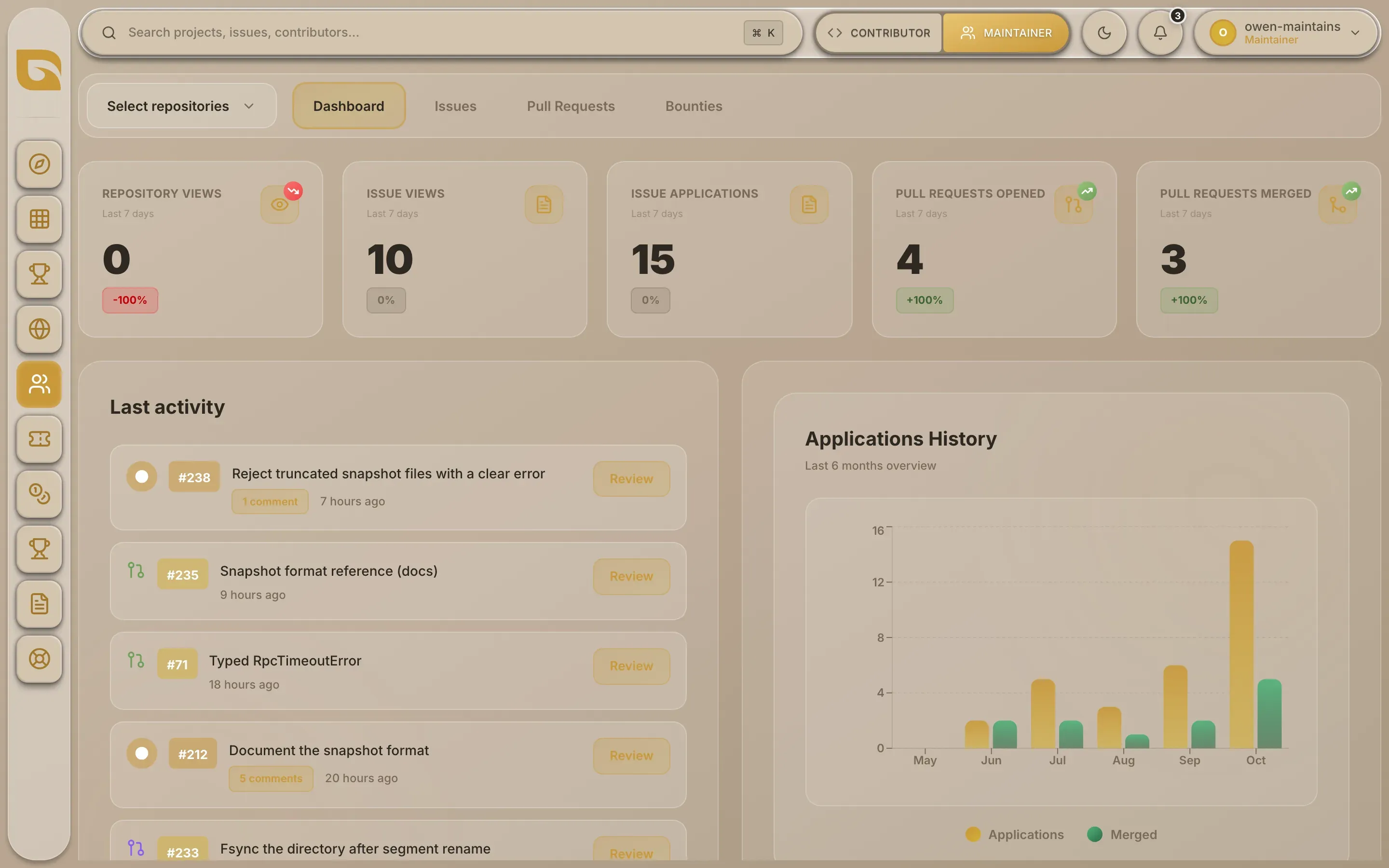
The switcher sits in the header, next to the search bar. It has a button for each view: CONTRIBUTOR, MAINTAINER, and, only if your account has the admin role, ADMIN. The view you're in is highlighted. On a phone, it's in the menu behind the button at the top right.

Your view is kept in the page address, so it survives a reload and a shared link opens in the same view.
What each view shows
| View | Who can choose it | Where it takes you | What changes |
|---|---|---|---|
| CONTRIBUTOR | Everyone | Discover | The rail shows Contributors, your own applications and projects. Issue pages show the contributor side: apply, or Withdraw your application. |
| MAINTAINER | Everyone | Maintainers | The rail shows Maintainers instead of Contributors. On issues in projects you own, you can Assign, Reject and Unassign applicants. |
| ADMIN | Accounts with the admin role | The admin review queues | The rail shows only the admin tools. |
Everything else on the rail, from Discover to Get help, is the same in contributor and maintainer view.
What makes you a maintainer
Anyone can switch to maintainer view. Maintainer powers come from owning a project on Grainlify, and you own a project by adding your repositories with the Grainlify GitHub App.
If you switch to maintainer view without any projects, the Maintainers page has nothing to manage yet. Open Select repositories and it says No repositories found, with Add a repository below.
On an issue, the maintainer controls appear only when both of these are true:
- you're in maintainer view, and
- you own the project the issue belongs to.
Grainlify checks ownership every time you act, so switching views never lets you manage someone else's project. Admins can act on any project.
If a page asks you to switch
Links that Grainlify sends you to act as a maintainer, such as the one in a new-application notification, switch you to maintainer view on their own. If you reach the Maintainers page another way while in contributor view, for example from a bookmark, it says You’re viewing as a contributor and offers Switch to maintainer view. Choose it to see the page.
The admin view
ADMIN appears only for accounts that hold the admin role. Grainlify re-checks that role on every admin action, so the button is a shortcut, not a key. Choosing it takes you to the admin review queues, and the rail shrinks to the admin tools. The admin pages of these docs are visible only to admins.
Next
- Find your way around: the rail and header in full.
- Maintainer quick start: from installing the GitHub App to your first assignment.