Browse projects and organizations
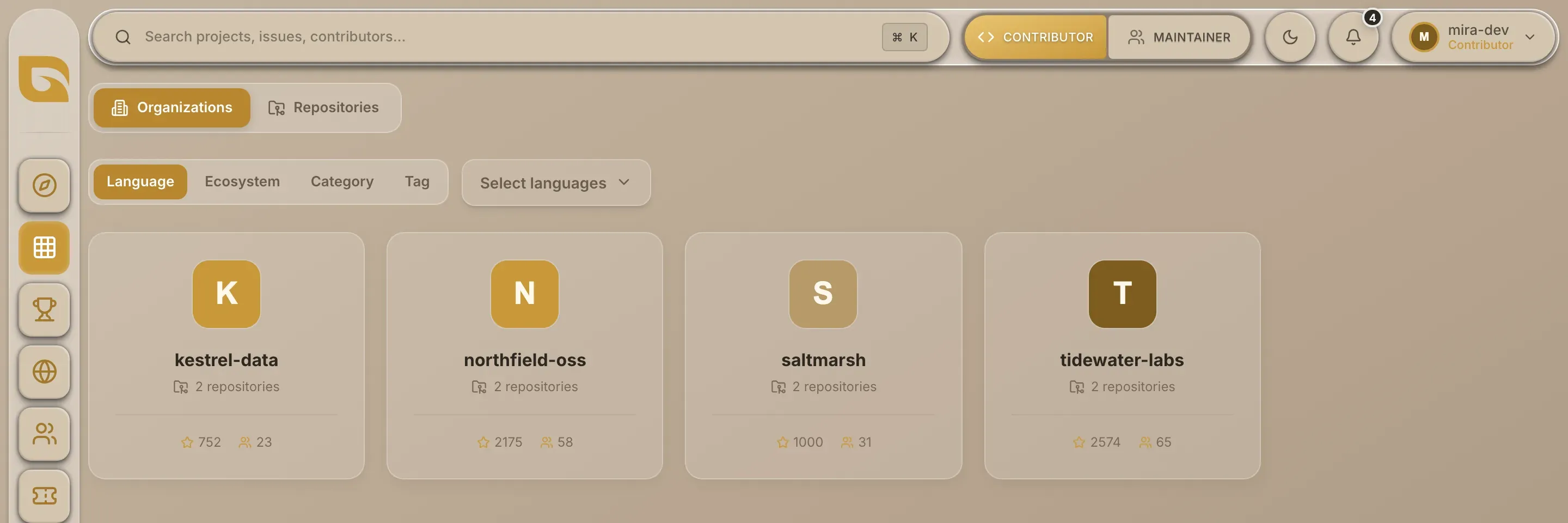
Browse lists the projects on Grainlify, newest first, and lets you narrow them by language, ecosystem, category and tag. Use it when you know the kind of work you want and would rather filter than scroll Discover. Open it from Browse in the rail.
Video: Browse projects and organizations
Organizations or Repositories
Browse opens on Organizations. Switch with the toggle at the top.
| View | One card per | Each card shows | Choosing a card opens |
|---|---|---|---|
| Organizations | GitHub organisation or account | How many of its repositories are listed, total stars, total contributors | The organisation's page |
| Repositories | Repository | Description, stars, forks, and counts of Contributors, open Issues and open PRs, plus up to two tags | The project page |
A contributor, on these cards, is anyone who has opened an issue or a pull request on the project.
Browse shows up to 50 projects at a time, the most recently listed first. Filters are how you reach the rest. The Organizations view groups the same projects by owner, so it follows the same filters.
Filter the list
-
Pick what to filter by. Choose Language, Ecosystem, Category or Tag.
-
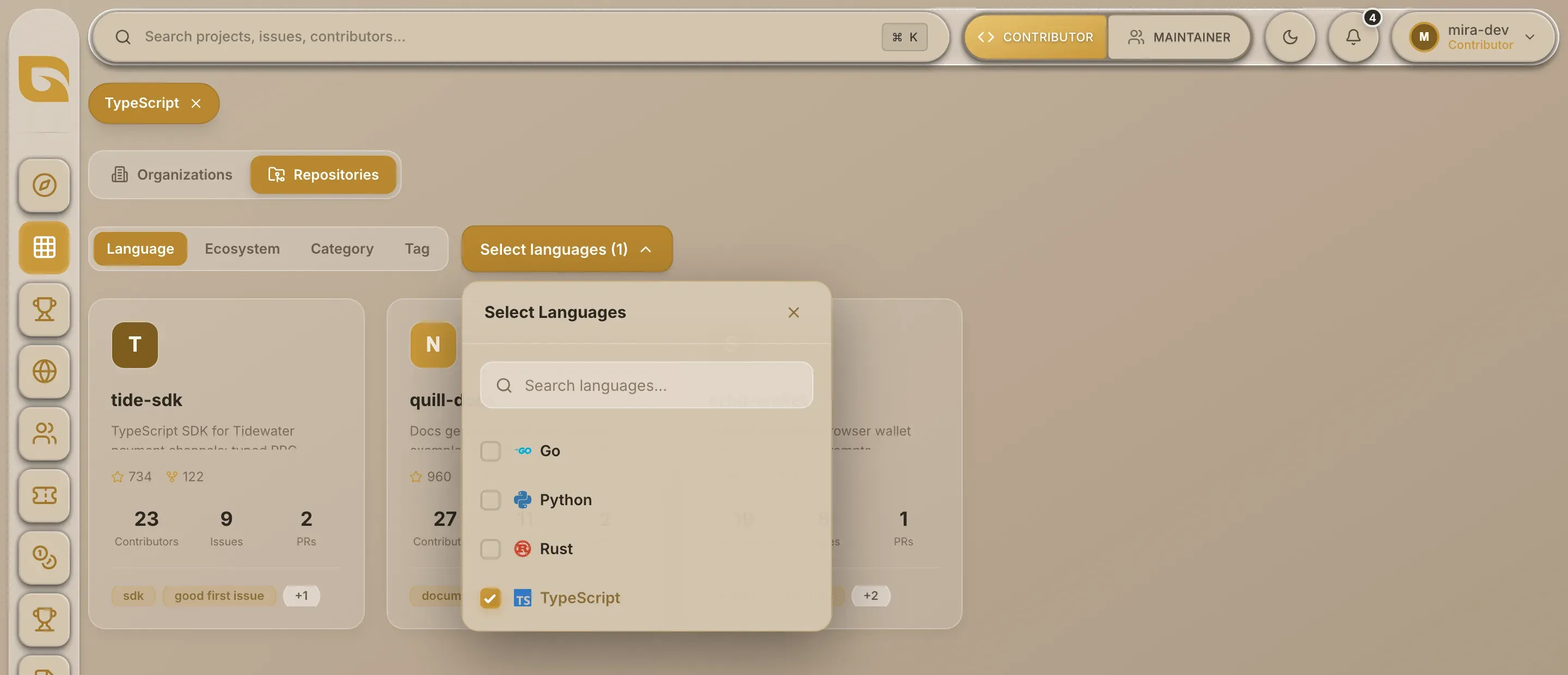
Open the list of values. Choose the button beside them. It reads Select languages, Select ecosystems and so on.
-
Search and tick. Type in the search box at the top of the list to find a value, then tick it. The grid updates straight away.
-
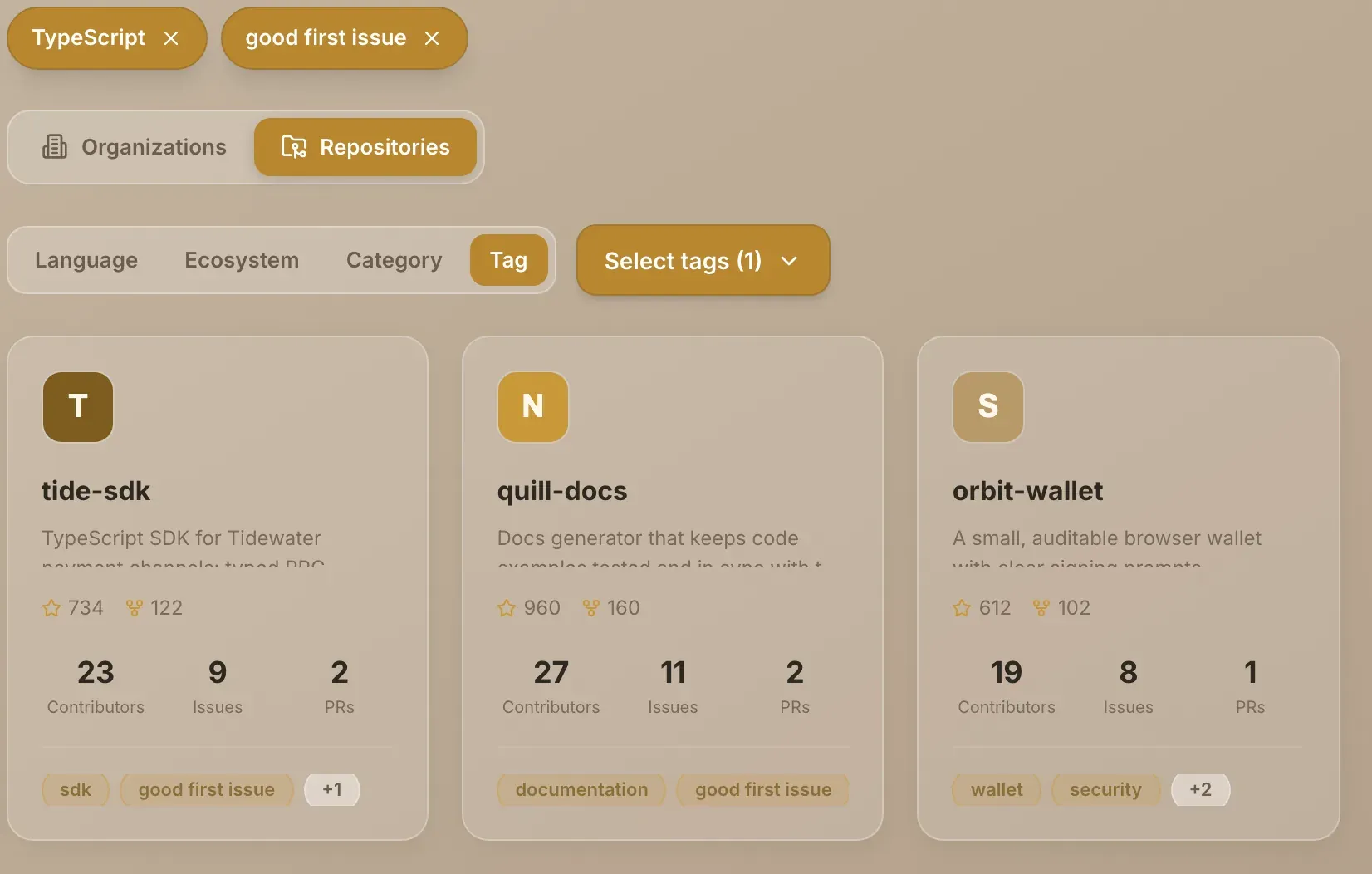
Add more filters. Switch to another type and tick values there too. Every filter you've set applies at once.
-
Remove a filter. Each value you've ticked appears as a chip above the toggle. Choose the cross on a chip to remove it, or untick the value in its list.
How filters combine
| Filter | What it matches | More than one value |
|---|---|---|
| Language | The project's main language, as its maintainer set it | Only the first value you ticked is used |
| Ecosystem | The ecosystem the project belongs to | Only the first value you ticked is used |
| Category | The category its maintainer chose, such as Frontend or Backend | Only the first value you ticked is used |
| Tag | The project's tags | A project must have every tag you tick |
Maintainers set a project's language, ecosystem, category and tags when they set it up. The Language, Category and Tag lists only offer values that listed projects actually use, so a new language appears as soon as a project with it is listed. The Ecosystem list shows every ecosystem on Grainlify.
If Browse can't load the values for a filter, a line under the filters says which ones and offers Try again. No projects found means nothing matches every filter you've set. Remove one and try again.
Open a project or organisation
- In Repositories, choose a card to open its project page. Back to Browse returns you here.
- In Organizations, choose a card to open the organisation's page. It lists all of that organisation's repositories on Grainlify, with its rank, stats and reviews. Choose a repository there to open its project page.
If you're looking for projects in one community, Ecosystems gathers them on one page. To find something by name, use Search.