Find your way around
Once you're signed in, every part of Grainlify sits inside the same frame: a column of icons down the left, and a bar across the top. This page names each one and says where it takes you.
The icon rail
The rail down the left edge holds the main places in the app. It shows icons only. Hover over one, or move to it with the Tab key, and its name appears beside it. The place you're on is highlighted in gold.
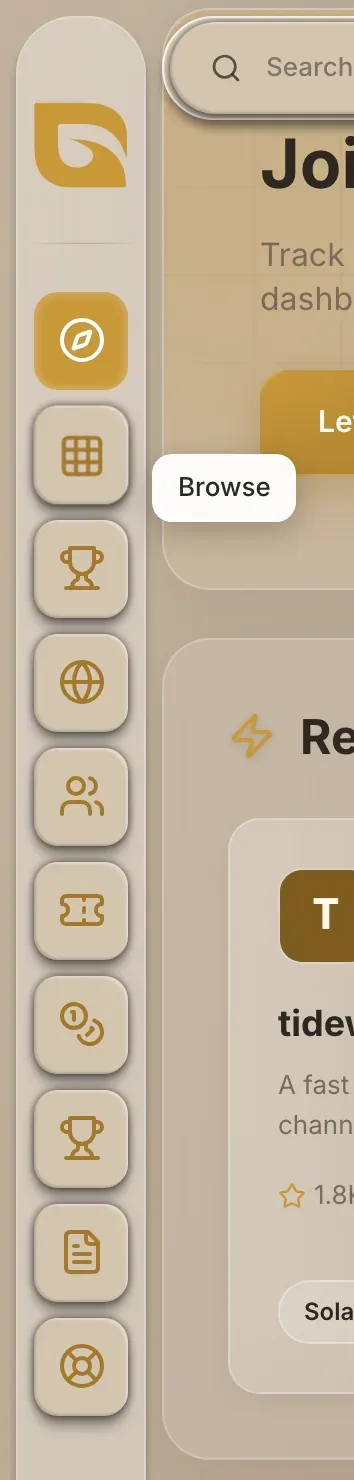
| Icon | Opens |
|---|---|
| Discover | Active projects on Grainlify, and open issues from them. This is where you land after signing in. |
| Browse | Every project and organisation, with filters for language, ecosystem, category and tag. |
| GrainHack | GrainHack events, and the issues in each one. |
| Ecosystems | Projects grouped by the ecosystem they belong to. |
| Contributors | Your own work: the issues you applied for and the projects you've contributed to. |
| Maintainers | Takes the place of Contributors in maintainer view. Your repositories, their issues and applications, and their pull requests. |
| My GrainHack | Your GrainHack assignments, applications and results, and the published Rules. |
| Bounties | Open Grainlify Bounties, the programme's status, and the ledger. |
| Leaderboard | Contributors ranked by merged pull requests. |
| Grainlify Blog | The Grainlify blog. |
| Get help | Report a problem or ask a question. |
Which of Contributors and Maintainers you see depends on the view you've chosen in the header. Contributor, maintainer and admin views explains the difference. Accounts with the admin role see a few more icons.
The header
The bar across the top holds, from left to right:

- Search. Click the search bar, or press Cmd+K on a Mac or Ctrl+K elsewhere, to open Search. It finds projects, issues and contributors. See Search.
- The view switcher. CONTRIBUTOR and MAINTAINER, and ADMIN for admins. It changes which parts of the app you see, not what your account is allowed to do.
- The theme button. A moon or a sun. It switches between light and dark, and this browser remembers your choice. Light is the default.
- The bell. A number on it counts your unread notifications. Click it for the ten newest, Mark all read, and See all notifications. See Notifications.
- Your picture and GitHub username. Click for a menu with Public Profile (your profile as others see it), Settings, and Logout.
On a phone
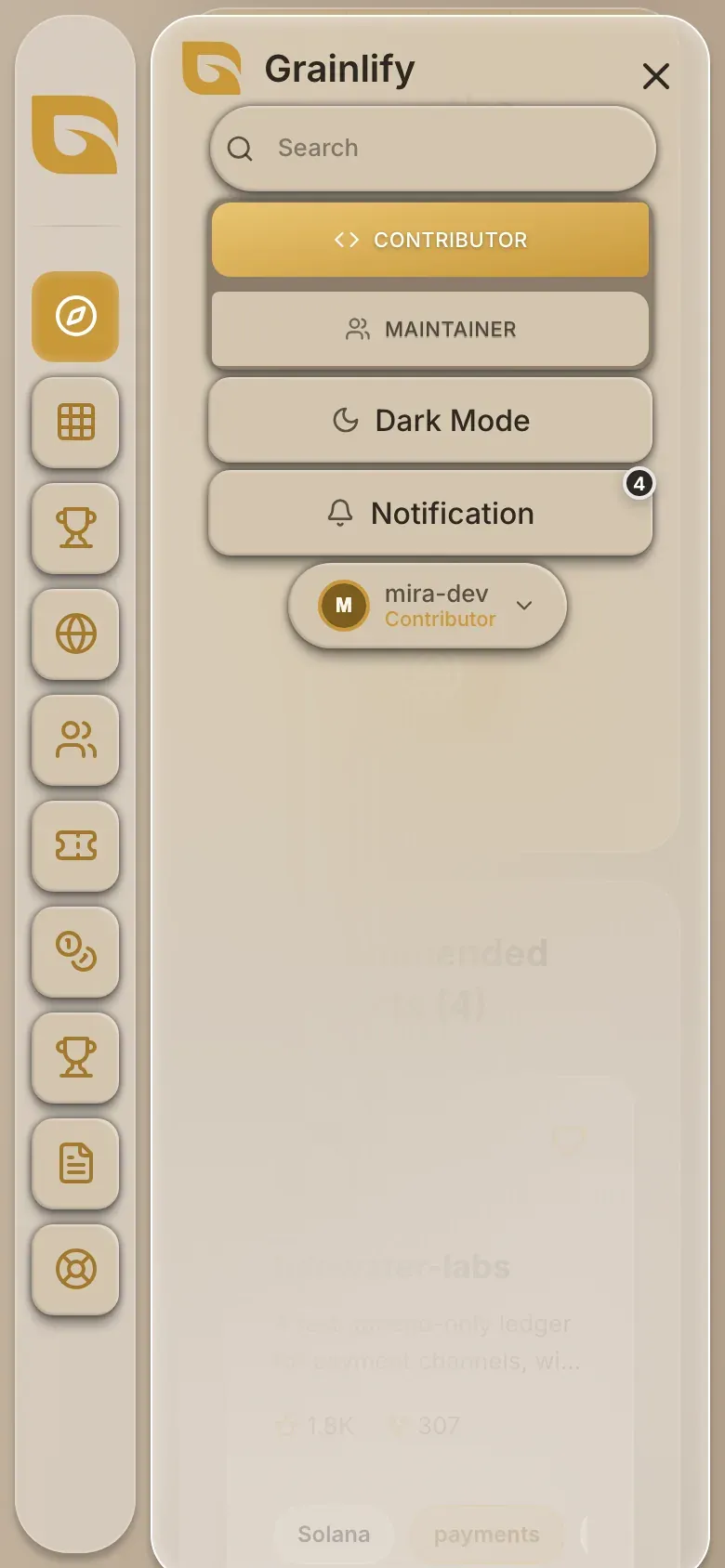
On a narrow screen the rail stays down the left, and the header shrinks to one button in the top-right corner.
-
Tap the menu button. It's the three lines at the top right.
-
Choose what you need. The menu opens full screen with Search, the view switcher, Dark Mode or Light Mode, Notification, and your picture with its menu. Choosing search, a view or the theme closes the menu for you.
-
Close it without choosing. Tap the cross at the top right.
The product tour you see on your first visit only runs on a computer, because it points at the rail and header.
Getting help
Get help is the last icon on the rail. It opens a form inside the app. If you can't sign in at all, the same form is at grainlify.com/support, and you don't need an account to use it. See Get help.