Read an issue page
The issue page is where you read an issue, see who has applied for it, and apply yourself. You reach it by choosing an issue on Discover, on a project page or in Search.
The page has two parts: the project's issues down the left, and the issue you chose on the right.
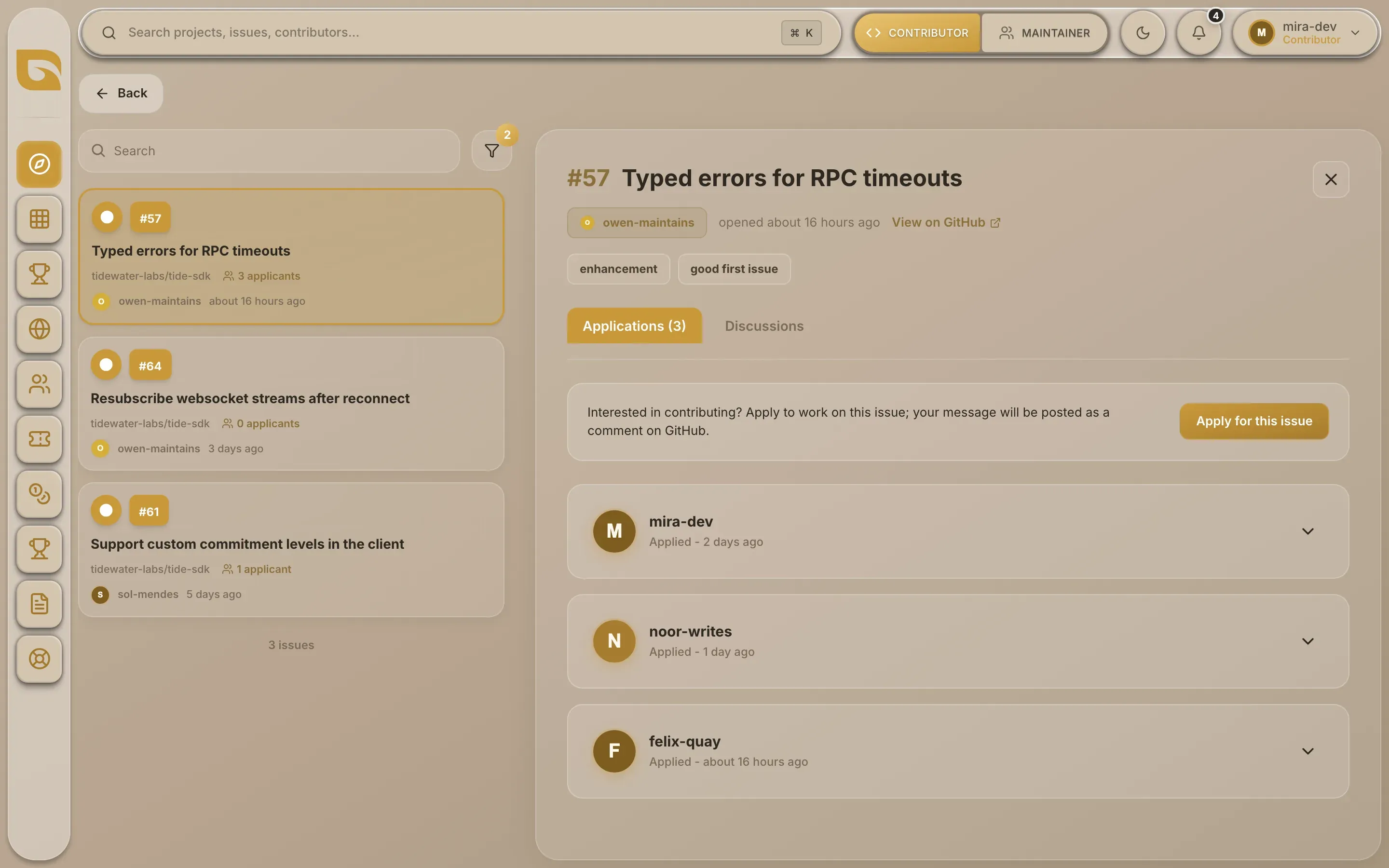
The issue
The top of the right-hand side shows the issue's number and title, who opened it, and its labels. A Closed badge appears if it's closed. View on GitHub opens the issue on GitHub in a new tab.
Below that are two tabs: Applications and Discussions.
Applications
Applications shows the apply box and everyone who has applied through Grainlify. The number beside the tab is how many applications there are.
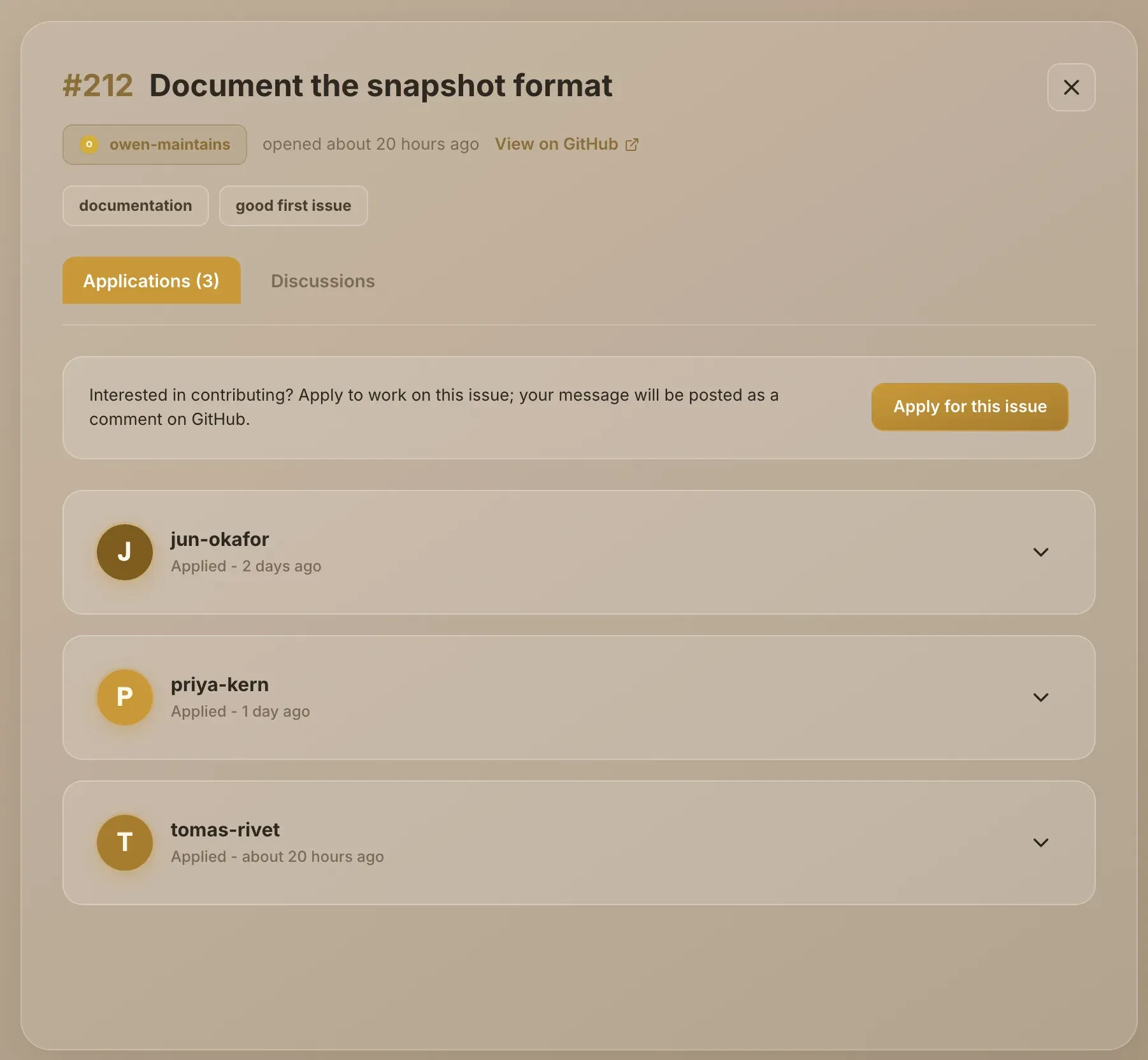
The apply box tells you whether you can apply:
| The box says | What it means |
|---|---|
| Apply for this issue, with a line about your message being posted on GitHub | The issue is open, unassigned and not yours. You can apply. |
| This issue is closed. Applications are disabled. | Nobody can apply to a closed issue. |
| This issue is already assigned. Applications are disabled. | Someone is assigned on GitHub. It reopens if they're unassigned. |
| You can't apply to your own issue. | You opened this issue on GitHub. |
| You have already applied for this issue. The maintainer decides who is assigned. | Your application is in the list below. You can withdraw it there. |
| This issue is part of a GrainHack event. | It's allocated by a weighted draw instead. See Apply for a GrainHack issue. |
Apply for an issue walks through applying.
Who has applied
Each application shows the applicant's picture, their GitHub username and how long ago they applied. An application stays listed until its applicant withdraws it.
- Read the message. Choose the arrow at the right of an application to expand it.
- See who they are. Choose their name to open their profile.
- Withdraw your own. Expand your application and choose Withdraw. You only see this on your own.
If nobody has applied, the tab says No applications yet.
Discussions
Discussions shows the issue's Description, then every comment on it. Comments are read from GitHub, so they include comments people post there directly.
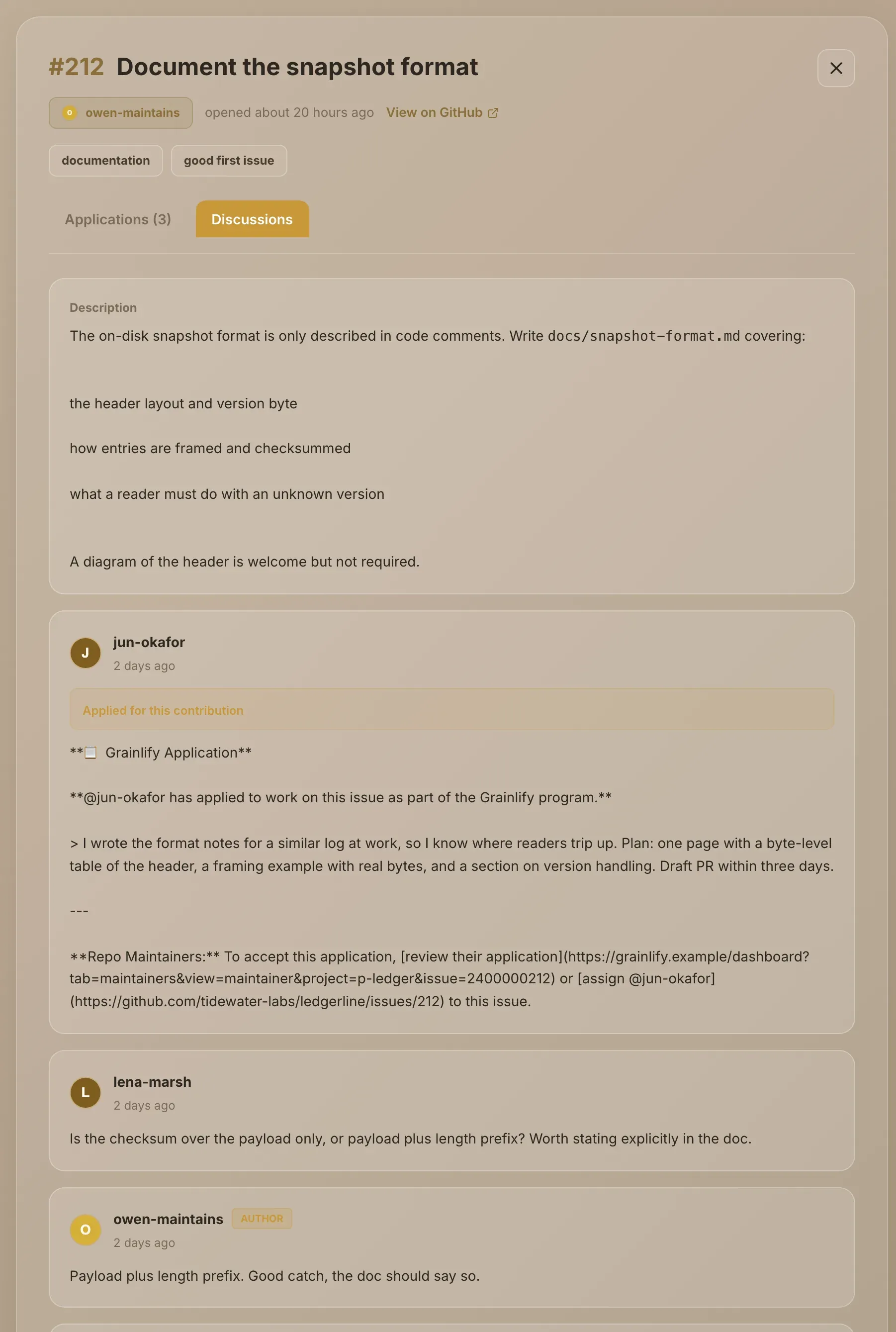
- The person who opened the issue is marked AUTHOR.
- Comments that are Grainlify applications are marked Applied for this contribution.
To reply, choose View on GitHub and comment there. There's no comment box on Grainlify.
The issue list
The left-hand side lists the project's most recently updated issues. It shows open issues until you change the filter. Each card shows the issue's number, title, how many people have applied, and who opened it. Choose one to open it on the right.
- Search matches an issue's title or the username of whoever opened it.
- The filter button opens All Filters. Status switches between Open and Closed. Applicants, Assignee and Stale each take Yes or No, and Labels narrows to issues with a label. A stale issue is one not updated for 30 days or more.
A good way to find something to pick up: set Applicants to No and Assignee to No to see open issues nobody has asked for yet.
Choose Back to return to where you came from.