Edit your profile
You edit your profile in Settings → Profile: your picture, your details and your contact handles. Your username and email come from GitHub, and you change those on GitHub. Open the menu under your picture, top right, choose Settings, and the Profile tab opens first.
Your GitHub account
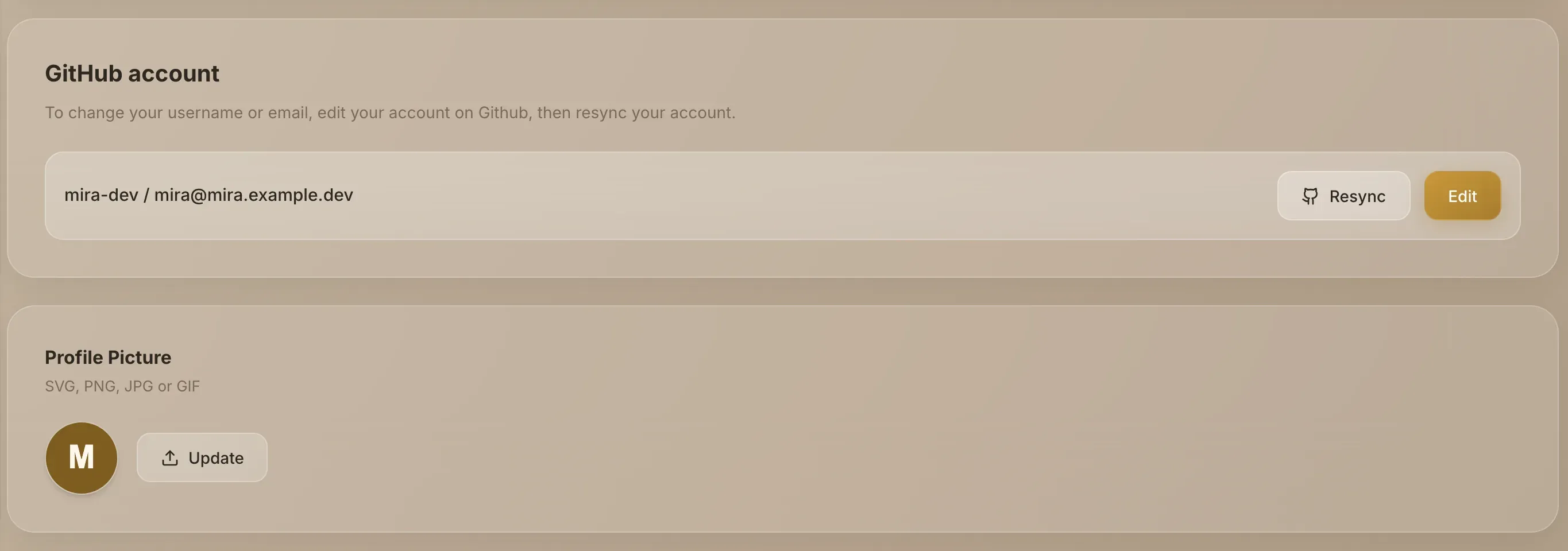
The GitHub account card shows your GitHub username and email address. Grainlify reads them from GitHub rather than letting you type them.
-
Choose Edit. It opens your profile settings on GitHub in a new tab. Make your change there.
-
Come back and choose Resync. Grainlify fetches your username and picture from GitHub again. You'll see GitHub profile synced successfully!
Your profile picture
Your GitHub picture is used until you choose another.
- Choose Update on the Profile Picture card, and pick an image. It can be SVG, PNG, JPG or GIF, up to 5MB.
- Choose Save Picture. Until you do, the new picture is only a preview. You'll see Profile picture updated successfully!
The picture you save is the one other people see on your profile page.
Your details
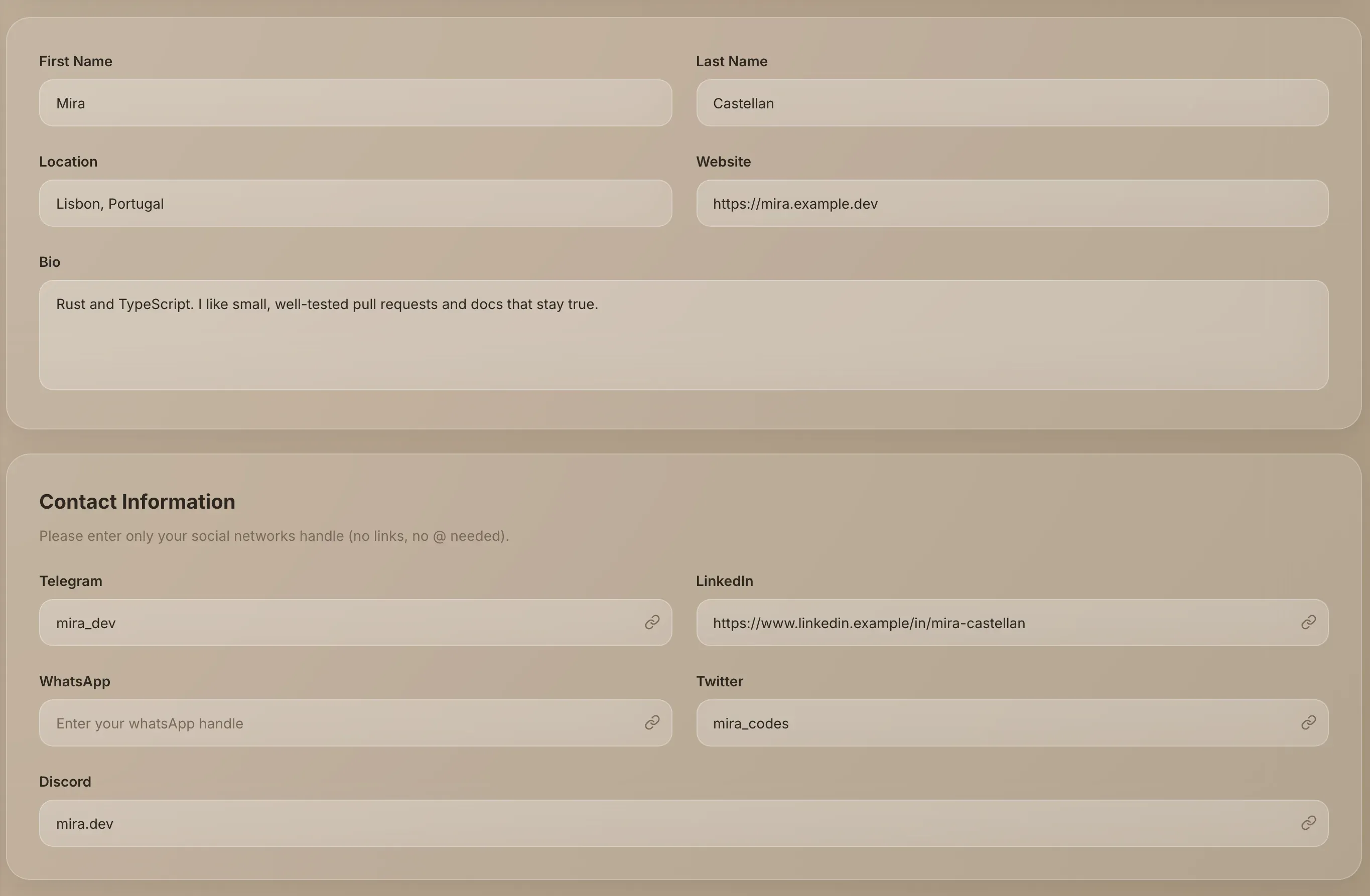
| Field | Shown on your public profile? |
|---|---|
| First Name, Last Name | No |
| Location | No |
| Website | Yes |
| Bio | Yes |
If you leave a field empty, it's filled in from your GitHub profile where GitHub has a value.
Contact Information
Add your handles for Telegram, LinkedIn, WhatsApp, Twitter and Discord. Enter only the handle: no links, and no @. Each one you add appears as an icon on your public profile.
Save your changes
Choose Save at the bottom of the tab. It's only available once you've changed something. You'll see Profile updated successfully!
The picture is saved separately, with Save Picture. Save doesn't save a new picture.
Your profile page shows your GitHub username, not the name you enter here. See Your public profile for everything that's shown.