Finish project setup
A repository you've just added isn't listed for contributors until you finish its setup. Setup is one short form: a description, an ecosystem, and optionally tags and a category. You can change the answers later.
Open the setup form
After you install the GitHub App, a New Project Setup window opens by itself when you first open Maintainers after GitHub sends you back (see Add your repositories). For any other repository:
-
Open the repository selector. In Maintainers, choose Select repositories, then choose the owner's name to show its repositories.
-
Choose Complete setup next to the repository.
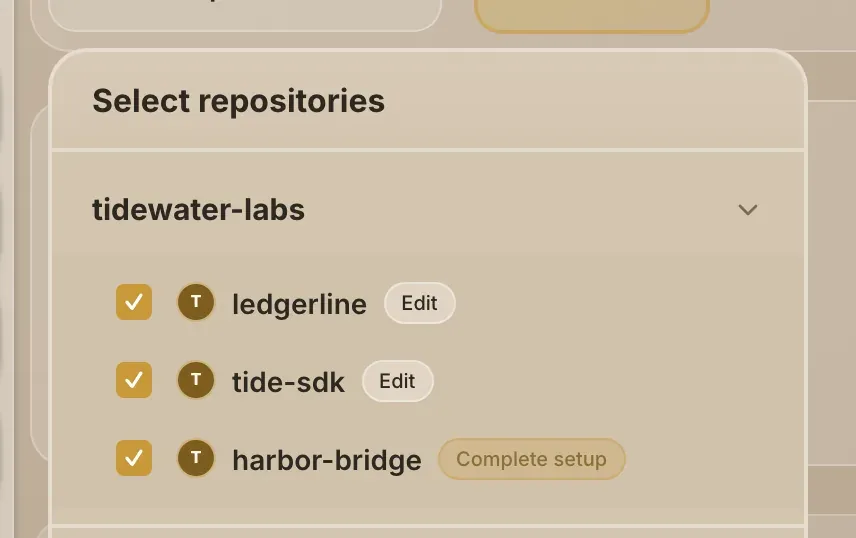
A repository that's already set up shows Edit instead. It opens the same form, titled Edit project, with your current answers filled in.
The fields
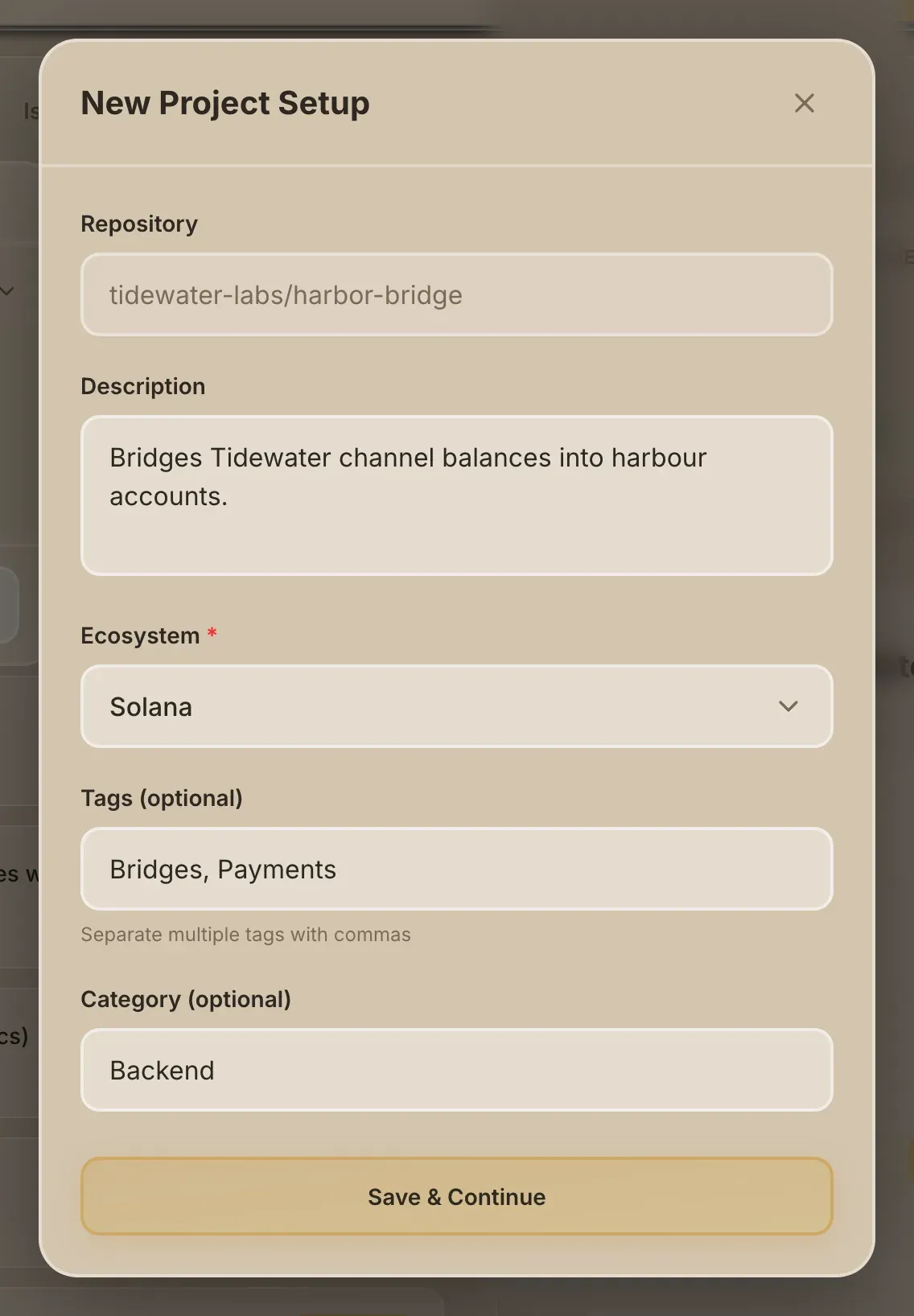
| Field | Required | What to put |
|---|---|---|
| Repository | Shown only | The repository this form is for. You can't change it. |
| Description | No | One or two sentences on what the project does. Grainlify fills this in from GitHub when your repository has a description there. |
| Ecosystem | Yes | The community the project belongs to, chosen from Select an ecosystem. Contributors can browse and filter by it. |
| Tags (optional) | No | Short topics, separated by commas, for example Payments, DeFi, Tooling. Your GitHub topics are filled in where you have them. |
| Category (optional) | No | A broad area, for example Frontend or Backend. |
The ecosystem list is kept by Grainlify. If the right one isn't there, get help and tell us which ecosystem you need.
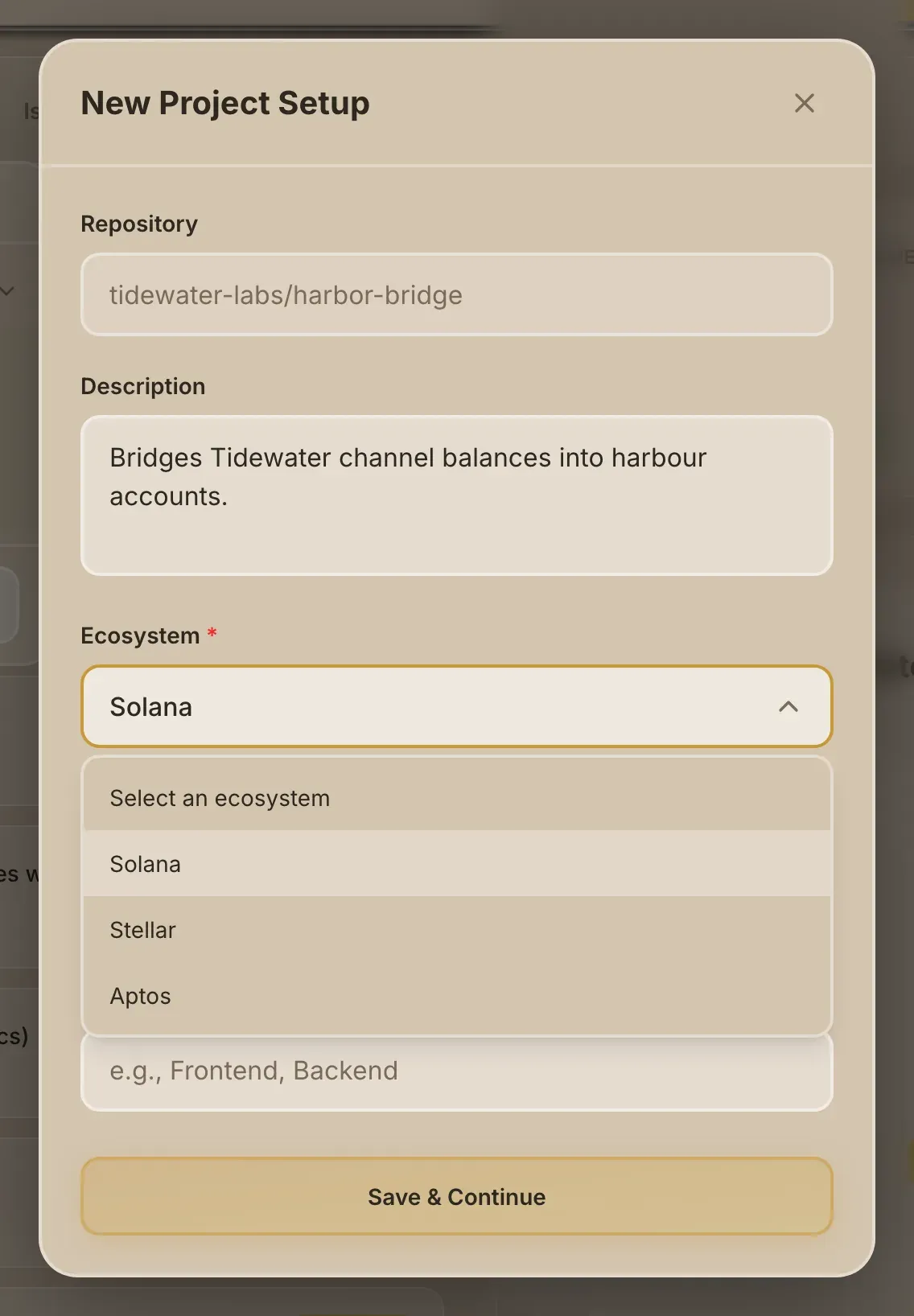
Save
Choose Save & Continue. The form says Project details saved. and closes. From then on, the repository is listed for contributors on Browse and in search, and its open issues can appear on Discover.
If you leave out the ecosystem, the form says Ecosystem is required and doesn't save.
Forks aren't listed for contributors, even after setup. List the original repository instead.
Change the details later
- In the repository selector, choose Edit next to the repository.
- Change what you need and choose Save & Continue.
Changes show to contributors straight away. The repository itself can't be changed: to list a different repository, add it as a new one.