Apply for an issue
On most issues, the project's maintainer chooses who works on it. You ask by applying with a short message. Grainlify posts your message on the GitHub issue as a comment from your own GitHub account, so the maintainer sees it where they already work.
Video: Apply for an issue
GrainHack issues work differently: a weighted draw decides who is assigned, and you apply from a separate panel. See Apply for a GrainHack issue.
When you can apply
You can apply for an issue when all three are true:
- It's open.
- Nobody is assigned to it on GitHub.
- You didn't open it yourself.
When one isn't true, the issue page says which, in place of the Apply for this issue button. You can apply for as many issues as you like, and several people can apply for the same one. The maintainer picks.
Apply
-
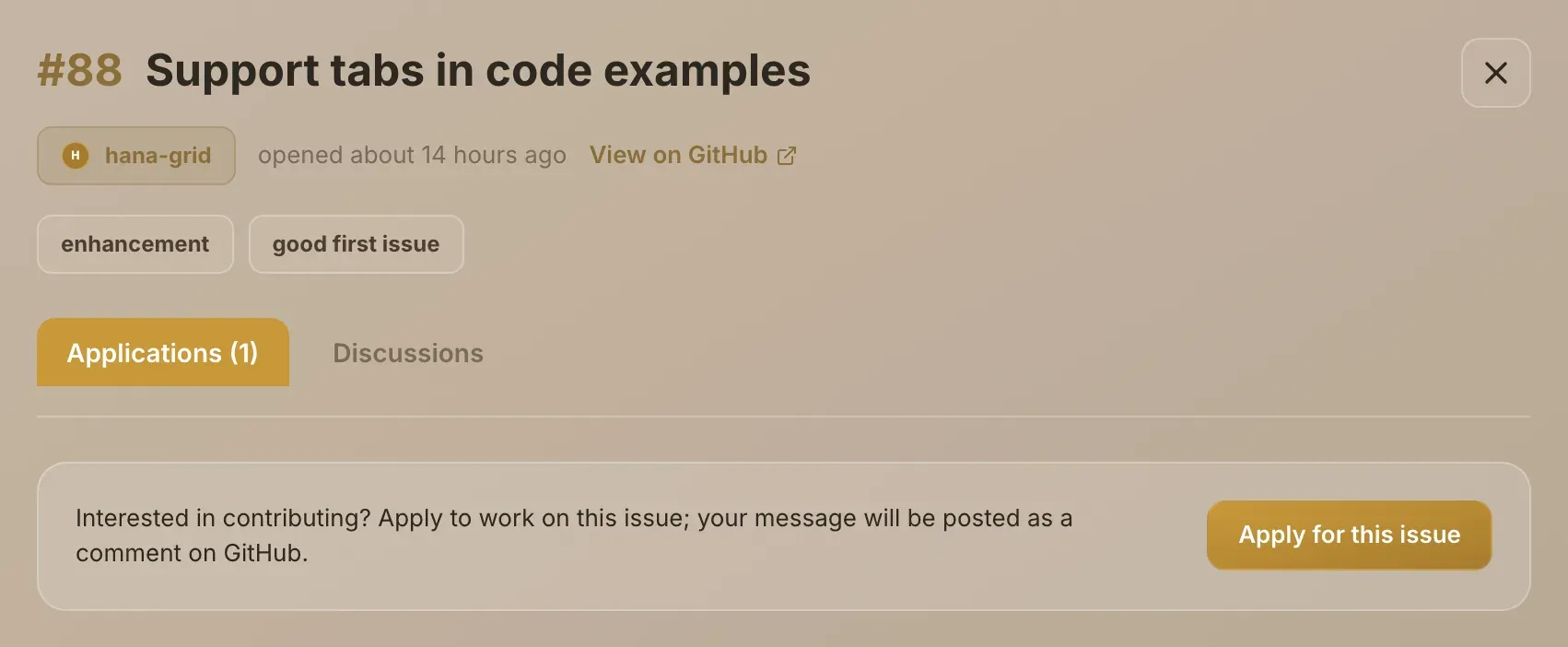
Open the issue. Choose it on Discover, a project page or in Search. It opens on the Applications tab.
-
Choose Apply for this issue.
-
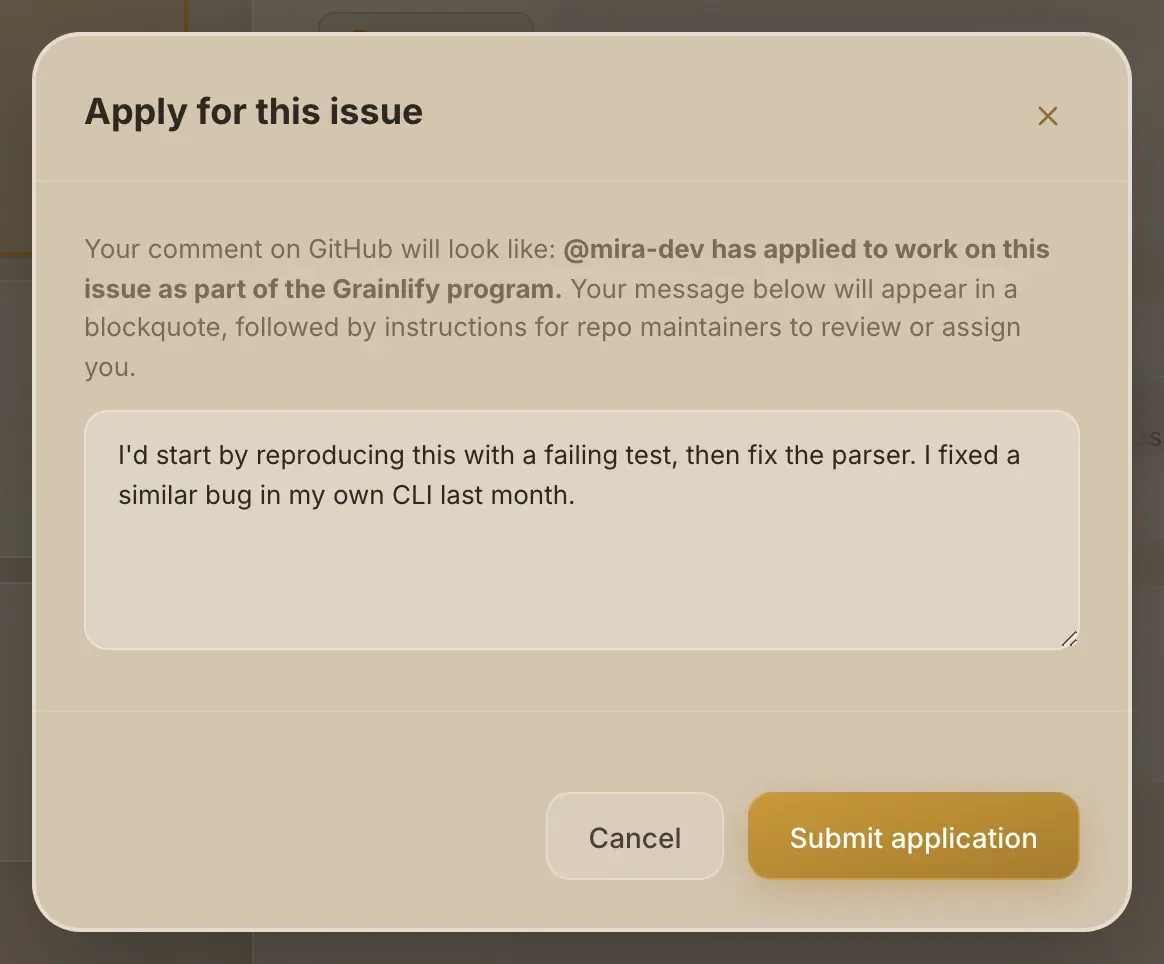
Write your message. The dialog shows how your GitHub comment will begin. Say how you'd approach the issue, or point to similar work you've done. "I'll take this" gives the maintainer nothing to compare.
-
Choose Submit application. You can't choose it until you've written something.
-
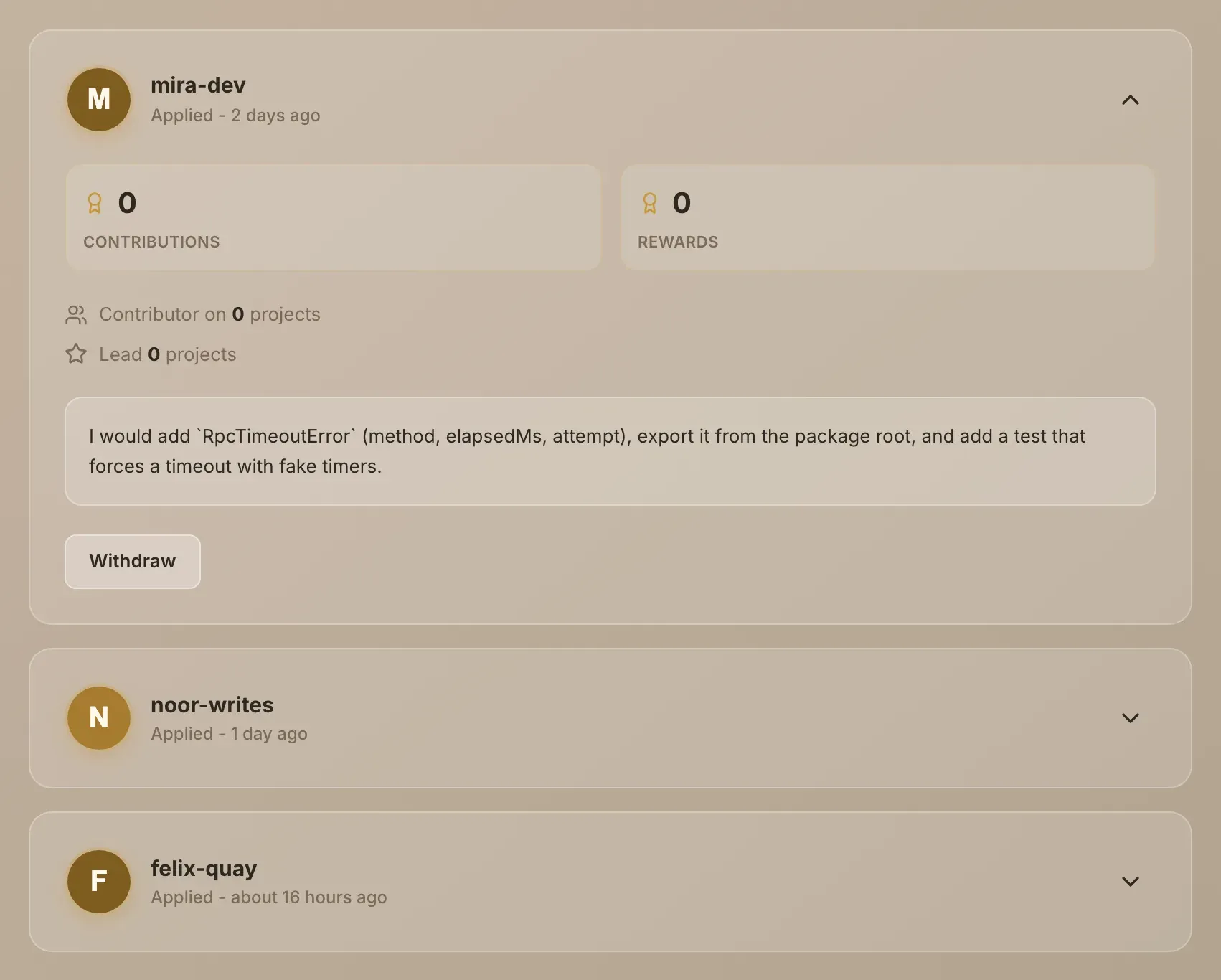
Check it's there. The dialog closes and your application appears in the list on the Applications tab. The apply box now says you have already applied.
What appears on GitHub
The comment is posted from your GitHub account. It reads:
- A Grainlify Application heading.
- @your-username has applied to work on this issue as part of the Grainlify program.
- Your message, as a quote.
- A line for the repository's maintainers, with links to review your application on Grainlify or assign you.
Your message is a public comment on the issue. Anyone who can see the repository can read it, so leave out anything you wouldn't post on GitHub yourself.
At the same moment, the maintainer gets a notification that you've applied, and you get one saying You applied to issue with its number. Your application also appears under Applied on your Contributors tab.
If the application can't be posted, the dialog stays open with your message and says what went wrong. Try again, or choose Cancel.
Withdraw an application
- Open the issue and stay on the Applications tab.
- Expand your application with the arrow on its right.
- Choose Withdraw.
Withdrawing deletes your comment from the GitHub issue and removes the application from your Contributors tab. Nobody is notified. If the issue is still open and unassigned, you can apply again later.
Next
- After you apply: what assigned, not accepted and unassigned look like.
- Open your PR and get it merged, once you're assigned.