Notifications
Grainlify tells you when something happens that concerns you: an application is received or decided, a pull request is merged, a follow proof is reviewed, a referral completes. This page covers the bell, the Notifications page, and how to choose what you get.
The bell
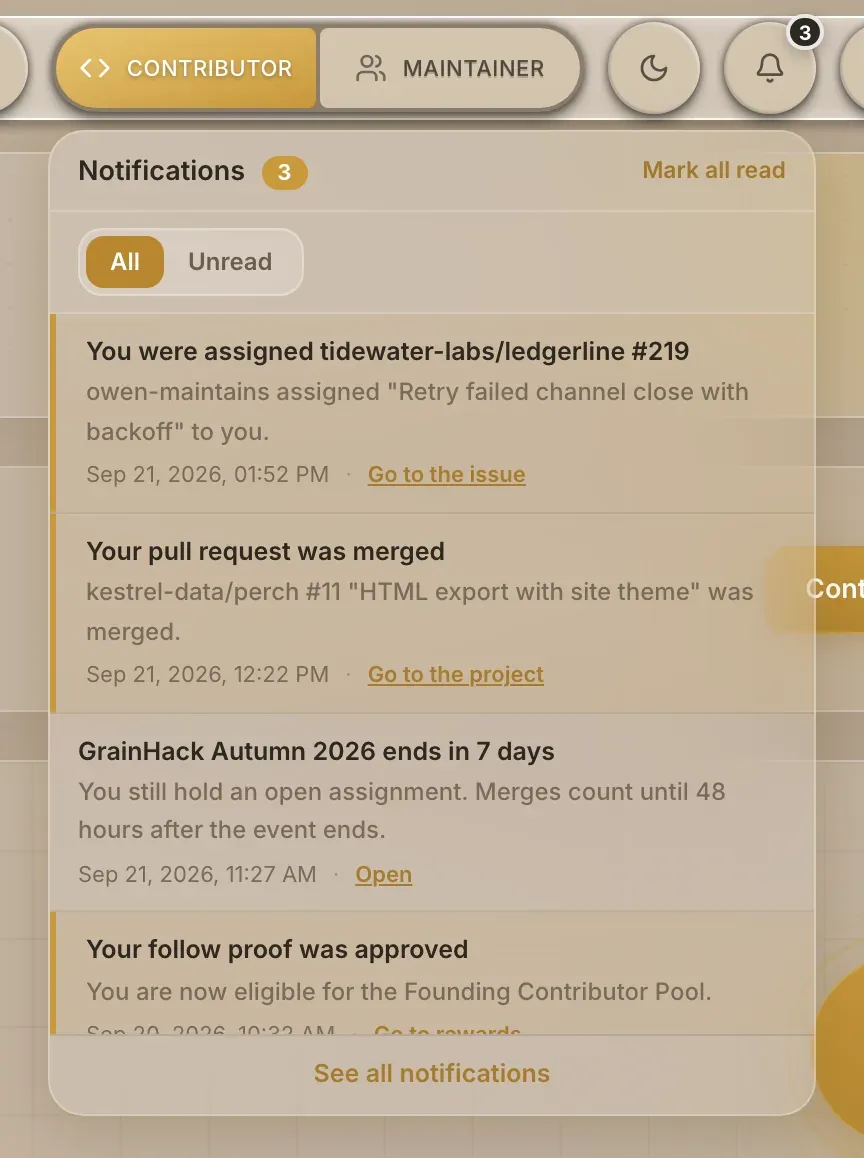
The bell sits at the top of every dashboard page, with a count of unread notifications (up to 99+). The count refreshes about once a minute. On a phone, the bell is in the menu.
-
Open the bell. It lists your ten newest notifications. Unread ones are highlighted.
-
Choose a notification. It's marked as read, and the Notifications page opens with that notification highlighted.
-
Or follow its link. Under each notification, beside its time, a link takes you to what it's about, such as Go to the issue, Go to the project or Go to rewards.
Mark all read clears every unread notification at once. See all notifications opens the full page. Once you have more than eight notifications, All and Unread buttons let you narrow the list.
The Notifications page
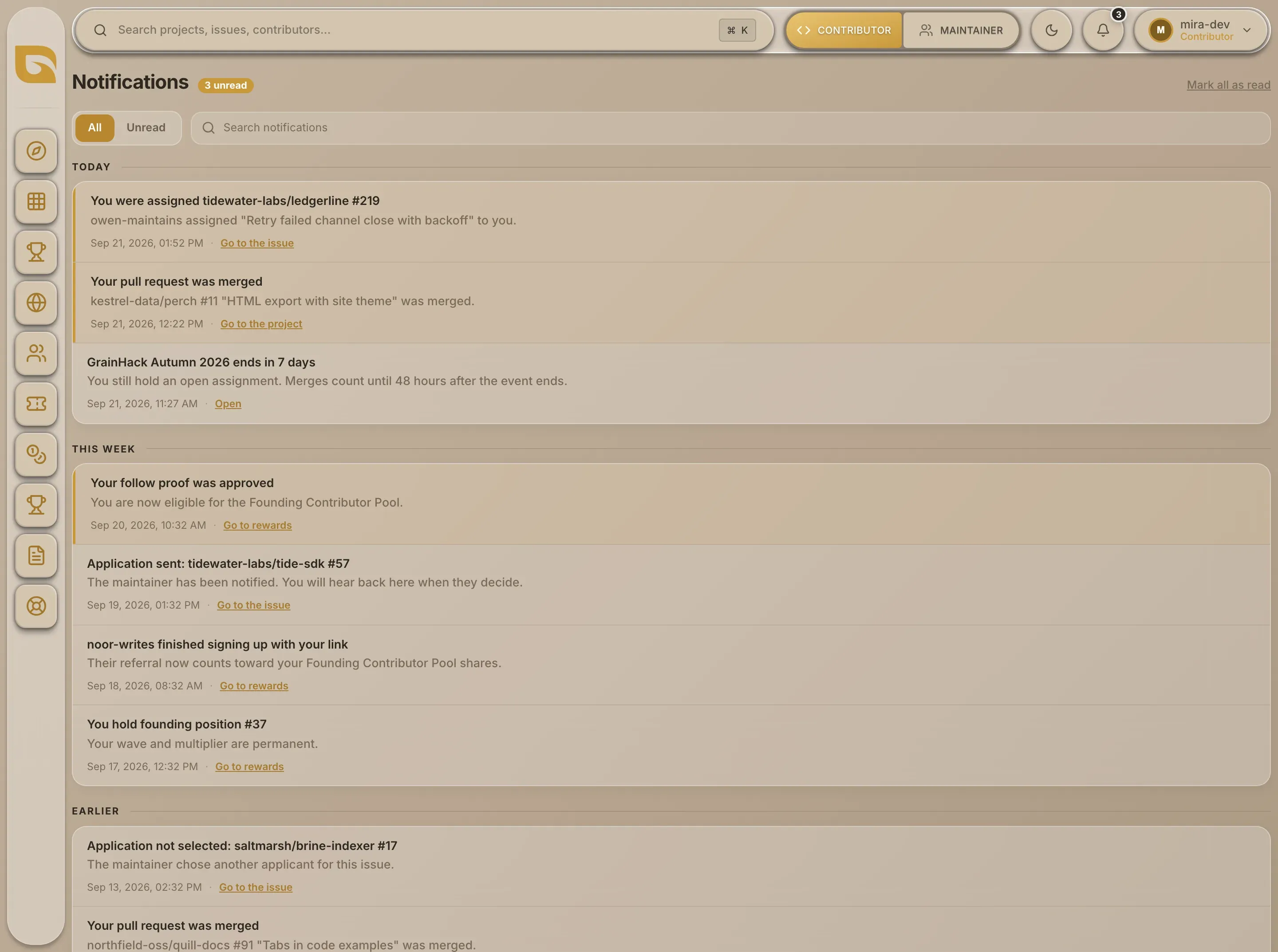
Choose See all notifications in the bell to open it. Notifications are grouped under Today, This week and Earlier, and the heading shows how many are unread.
- Choose a notification to mark it as read.
- Mark all as read marks everything read.
- Load older fetches the next set.
- Once you have more than eight notifications, All and Unread narrow the list, and Search notifications matches the title and text of the ones loaded.
Choose what you get
Open the menu under your picture, choose Settings, then Notifications.
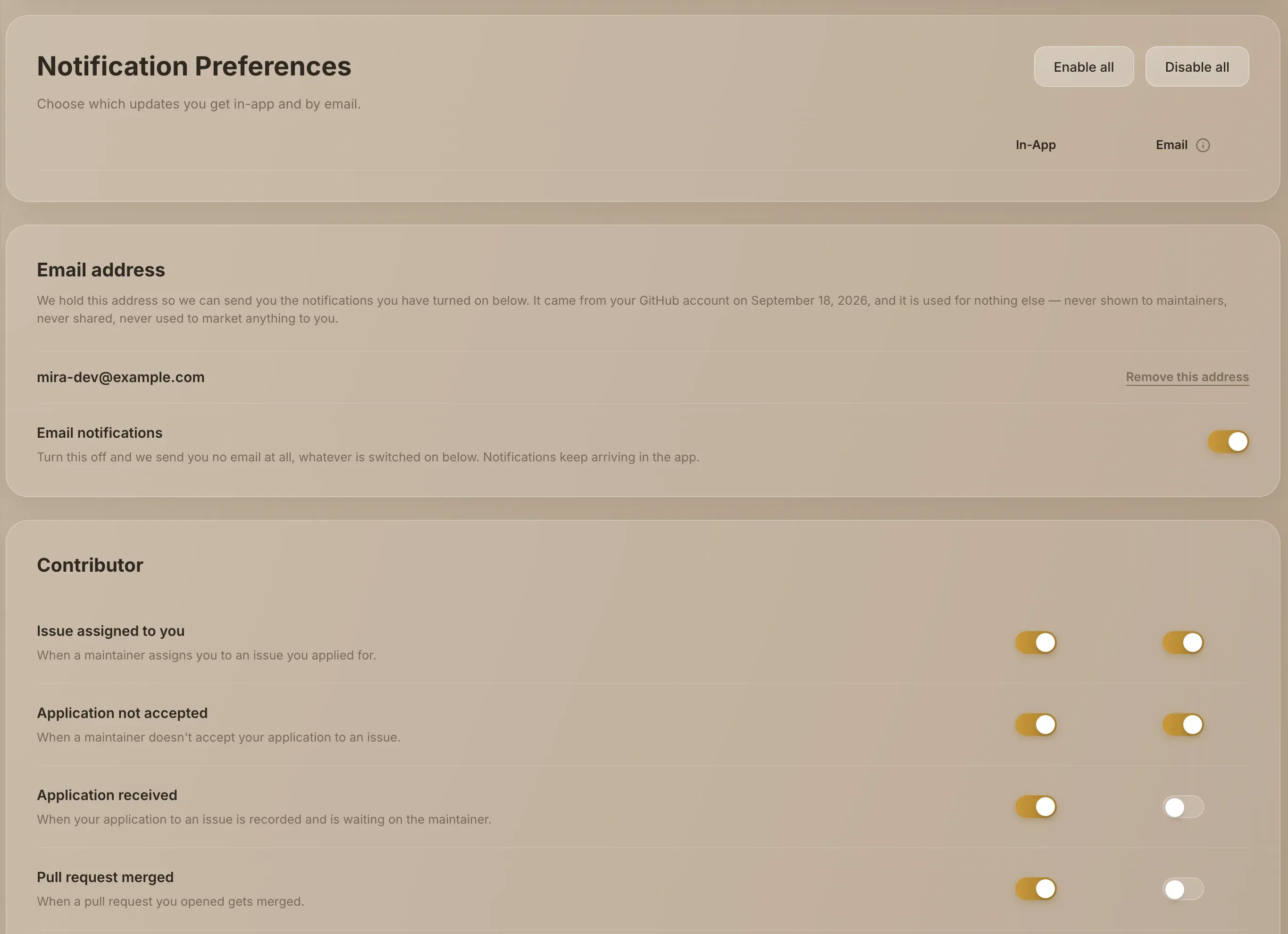
- Find the type. There's one row per type of notification, grouped under Contributor, Bounties, GrainHack, Maintainer and Other, each with a short description.
- Set its switches. Each row has an In-App switch and an Email switch. Enable all and Disable all change every row at once.
- Choose Save. Nothing changes until you do. You'll see Notification preferences saved.
Every type is switched on for both until you change it. Turning In-App off for a type stops new notifications of that type reaching the bell and the page. Ones you already have stay.
For the full list of types and what triggers each, see Notification types.
Your email address
The Email address card at the top of Settings → Notifications shows the address notification emails go to. Grainlify takes it from your GitHub account when you sign in: your primary address, even if it's private on GitHub. It's used only for these emails. It isn't shown to maintainers or shared.
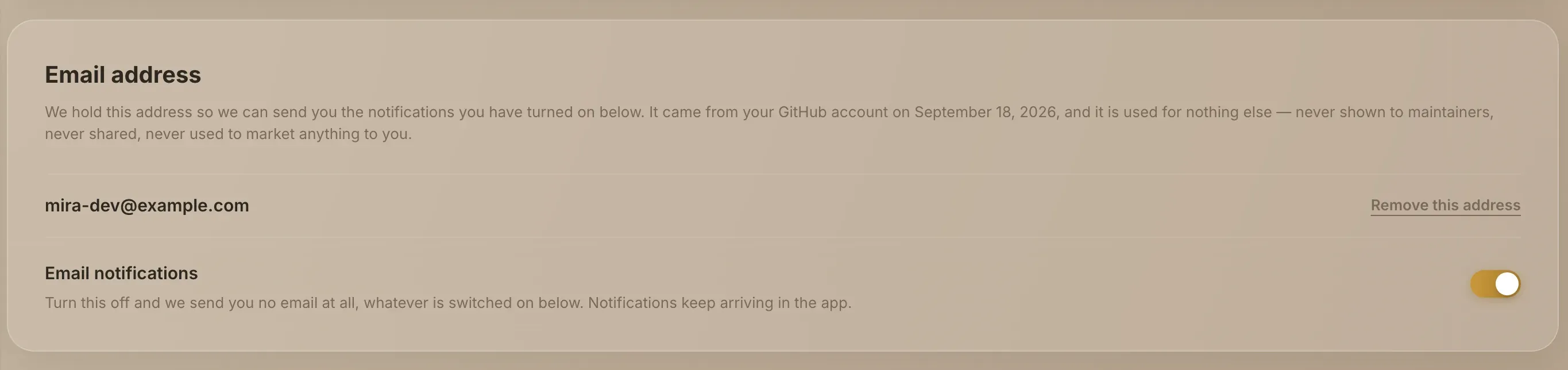
- Email notifications turns off all email at once, whatever the rows below say. Notifications keep arriving in the app.
- Remove this address deletes it once you confirm. Signing in again won't store it again unless you choose Let Grainlify store it again at my next sign-in.
If the card says Grainlify holds no email address for you yet, it's stored the next time you sign in with GitHub.