Create your account
You sign in to Grainlify with your GitHub account. There's no separate form and no password: the first time you sign in, your account is created.
Video: Create your account
Sign in with GitHub
-
Go to grainlify.com and choose Get Started.
-
Choose Sign in with GitHub.
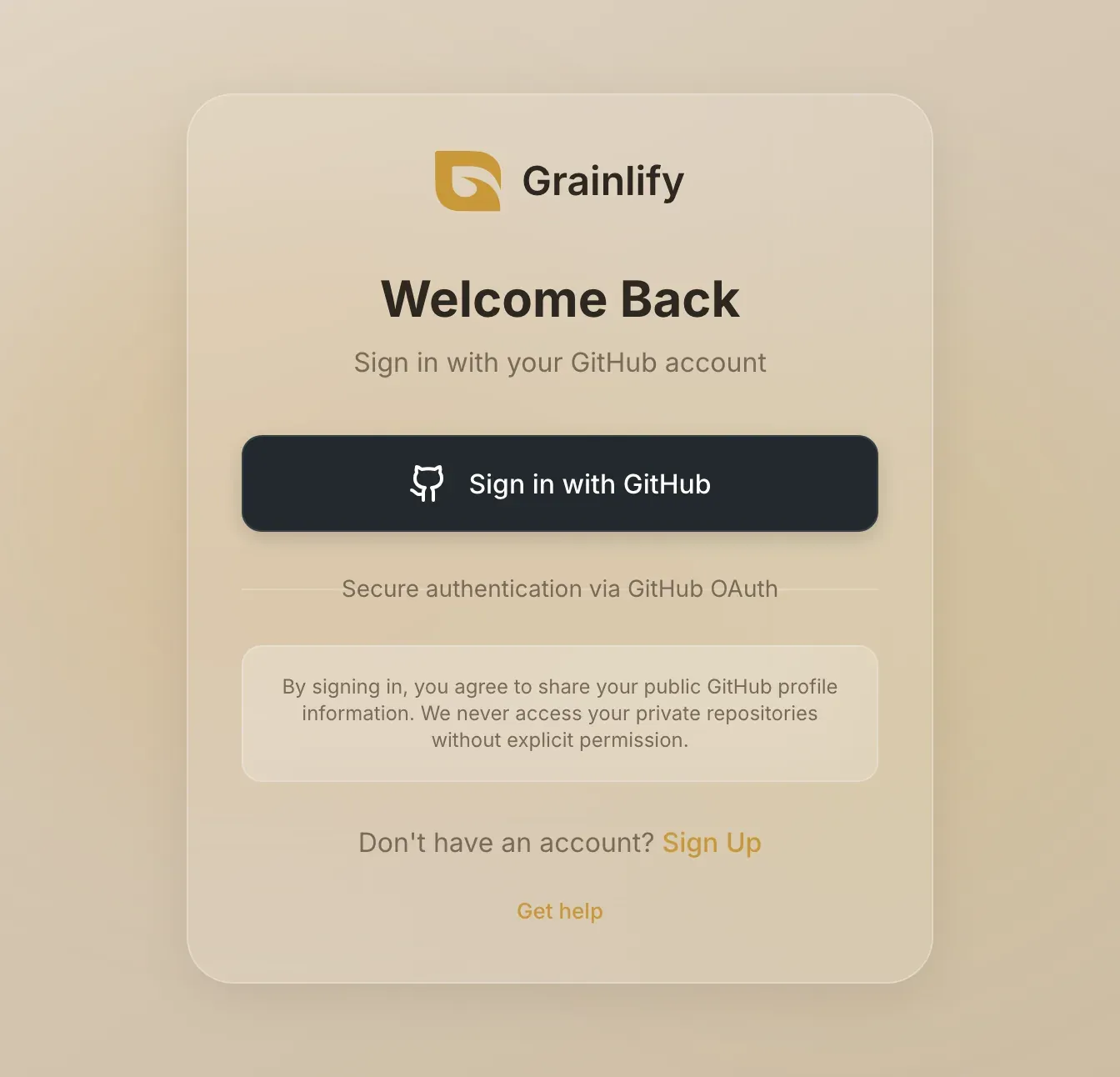
-
GitHub asks you to authorize Grainlify. Check what it asks for (listed below), then approve.
-
You're back on Grainlify, signed in, on Discover.
Signing up and signing in are the same thing. The Sign up with GitHub button on the sign-up page does exactly what Sign in with GitHub does.
To use Grainlify you must be at least 18, or the age of legal majority where you live if that's higher. The full terms are in Settings → Terms and Conditions.
What Grainlify asks GitHub for
| GitHub permission | What Grainlify uses it for |
|---|---|
| Your profile | Your GitHub username and picture become your Grainlify identity. |
| Your email addresses | Your primary email address, even if it's private on GitHub. Grainlify stores it when you sign in, to send the notification emails you turn on, and uses it for nothing else. You can see or remove it in Settings → Notifications. |
| Organization membership, read-only | Checking whether you belong to an organization, for example before you rate one. |
| Public repositories | Listing pull requests on public repositories, and posting your application as a comment from your account when you apply for an issue. |
GitHub describes the last permission as read and write access to your public repositories. Grainlify writes with it only when you apply for an issue, and doesn't ask for any access to your private repositories.
Your first visit
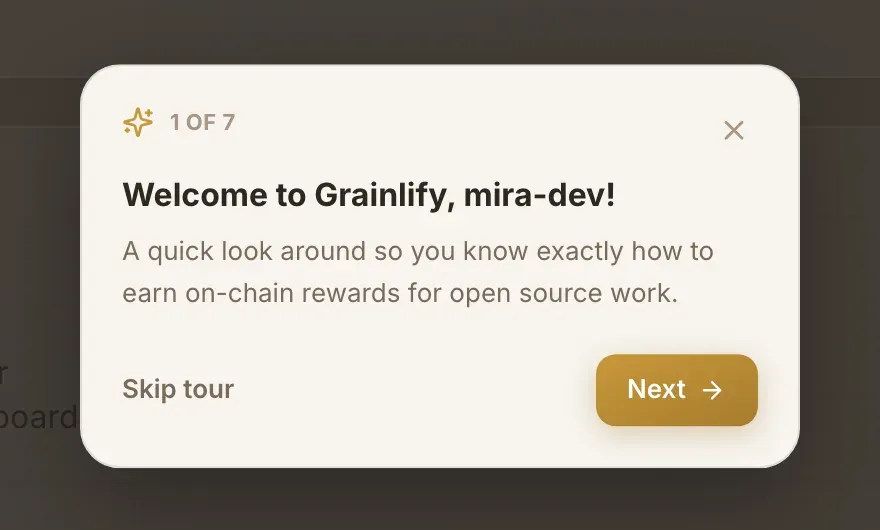
The first time you open the dashboard on a computer, a short tour points out the main parts of the app: Discover, Browse, the leaderboard and search. Move through it with Next, or leave it any time with Skip tour or the Esc key. It only appears once, and it doesn't appear on a phone.
Signing out
Open the menu under your picture, top right, and choose Logout. To come back, choose Sign in with GitHub again. If you're still signed in to GitHub, that's one click.
Next
- To take bounties, link your Solana wallet.