Read a project page
A project page is one repository's page on Grainlify. It shows what the project is, who works on it, its open issues and its recent activity, so you can judge whether it's somewhere you want to contribute. You reach it by choosing a project in Browse, an ecosystem, an organisation's page or Search.
The header
The top of the page shows the repository's name and its description from GitHub.
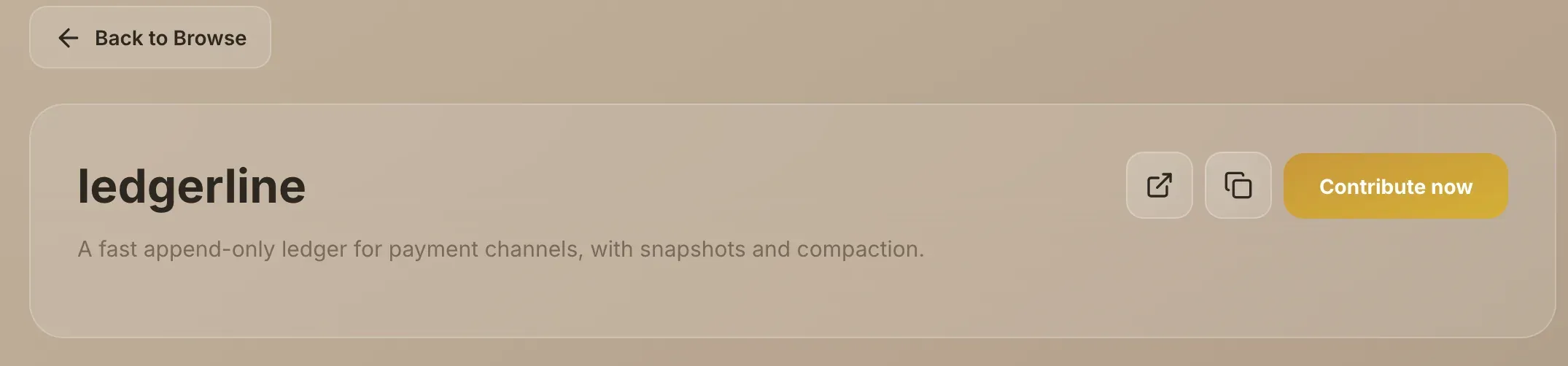
- The arrow button opens the repository on GitHub.
- Copy link copies a link to this project page. See Share a project below.
The back button above the header says where it returns to, such as Back to Browse or Back to Ecosystems.
Overview
Overview shows the project's README, read from GitHub. A long README is cut short: choose Show more to read the rest, and Show less to fold it again. If there's no README, you'll see the description instead, or a link to the GitHub repository.
Issues
Issues lists the project's open issues, most recently updated first.
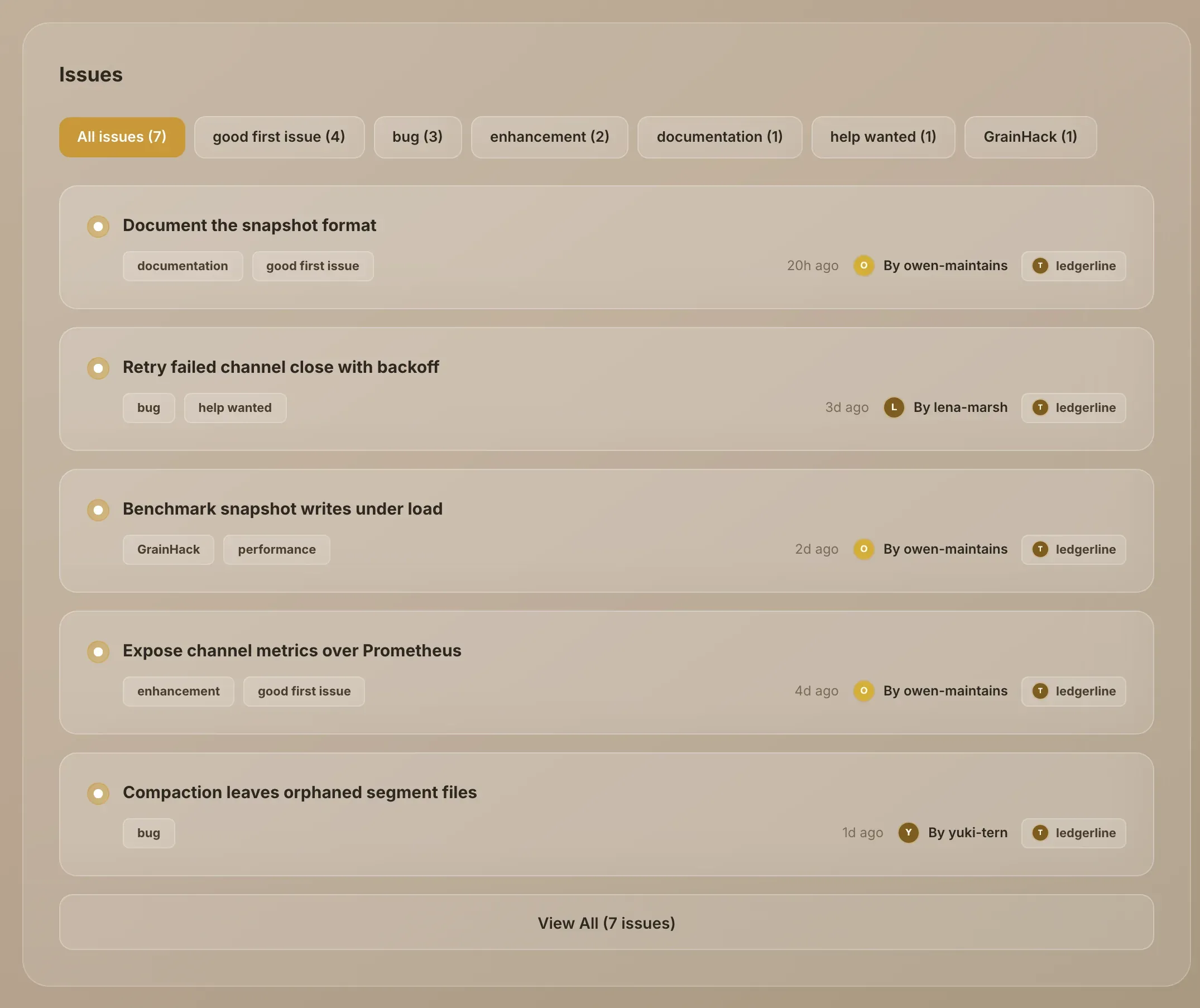
- Filter by label. The row of tabs starts with All issues, followed by the six labels used most on this project's open issues. Each tab shows its count. Choose one to see only issues with that label.
- Scan an issue. Each row shows the title, up to four of its labels, when it was last updated, and who opened it.
- See more. The list shows five at first. Choose View All to see the rest.
- Open an issue. Choose a row to open the issue page, where you can read the discussion and apply.
Labels come straight from GitHub, so a good first issue tab appears when the maintainer uses that label.
Recent Activity
Recent Activity mixes the project's pull requests with its open issues, newest first. Each entry shows its number, title and date. Pull requests are coloured by state: open, merged or closed. Choose an entry to open it on GitHub. Five show at first; View All shows the rest.
The side column
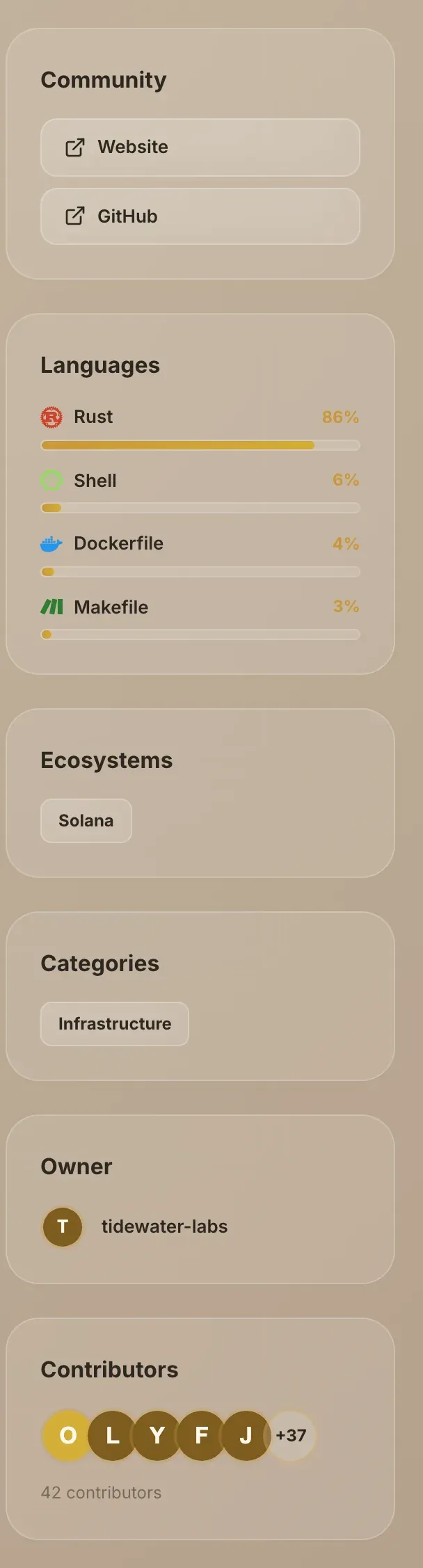
| Section | What it shows |
|---|---|
| Community | Website, if the repository has one, and GitHub |
| Languages | The languages GitHub detects in the repository, with each one's share |
| Ecosystems | The ecosystem the project belongs to |
| Categories | The category its maintainer chose |
| Owner | The GitHub account that owns the repository |
| Contributors | Up to five faces, and how many people have opened an issue or pull request on the project |
Share a project
- Choose Copy link in the header. The link is copied to your clipboard.
- Paste it anywhere. Whoever opens it lands on this project page.
The link carries only the project. It doesn't carry your view, your role or where you came from, so maintainers can share it safely with contributors. Someone who isn't signed in is asked to sign in with GitHub first, then taken straight to the project.