Settings, tab by tab
Settings is where you manage your account: your profile, what you're told about, your referrals, your Founding Contributor Pool place and where payouts go. This page gives each tab a short tour and links to the page that covers it in full.
Open Settings
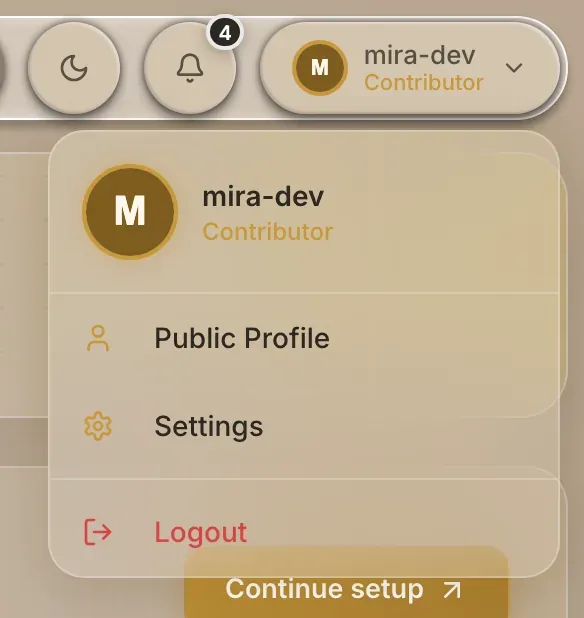
Open the menu under your picture, top right, and choose Settings. The tabs run across the top, and Profile opens first. The tab you're on is kept in the address, so reloading the page keeps you there.
Profile
Your picture, name, location, website, bio and contact handles, and the button that refreshes your username and picture from GitHub. Only some of these appear on your public profile.
See Edit your profile.
Notifications
The email address notifications are sent to, with a switch that turns off all email. Then a row for each type of notification, with an In-App and an Email switch, plus Enable all and Disable all. Choose Save to keep your changes.
See Notifications.
Referrals
Your referral code and link, with copy buttons, and counts of how many people you've referred and how many are pending or completed.
See Referrals.
Rewards
Two cards. The first shows your place in the Founding Contributor Pool, if you have one, and whether you're eligible. The second, Social Follow, is where you submit your LinkedIn and X screenshots and see their status.
See Founding Contributor Pool and Social follow.
Payout Preferences
Where GrainHack and Founding Contributor Pool payouts are sent. From the top:
- Any payouts that have been published for you on Aptos.
- The payout readiness card, when you have something to do or were left out of a payout.
- Your Aptos payout address, registered with Petra, for the Founding Contributor Pool, and the optional payout contact field.
- Your Base payout address, registered with an Ethereum wallet, for GrainHack.
See How payouts work, Register your payout address and Payout readiness. Bounties are paid to a Solana wallet you link elsewhere: see Link your Solana wallet.
Terms and Conditions
The terms of using Grainlify, with On this page links to jump to each section.
At the bottom, choose Accept to acknowledge them. The card then says Terms accepted. Your acceptance is remembered on this device only, so another browser shows Accept again.
