Get help
Use the Get help page to report a bug, ask a question, or suggest a change. You don't need to be signed in, so it works even when signing in is the problem.
Open Get help
- Signed in: choose Get help at the bottom of the rail, below the other items.
- Signed out: choose Get help on the sign-in or sign-up page, or in the footer of the home page. You can also go straight to grainlify.com/support.
Send a report
-
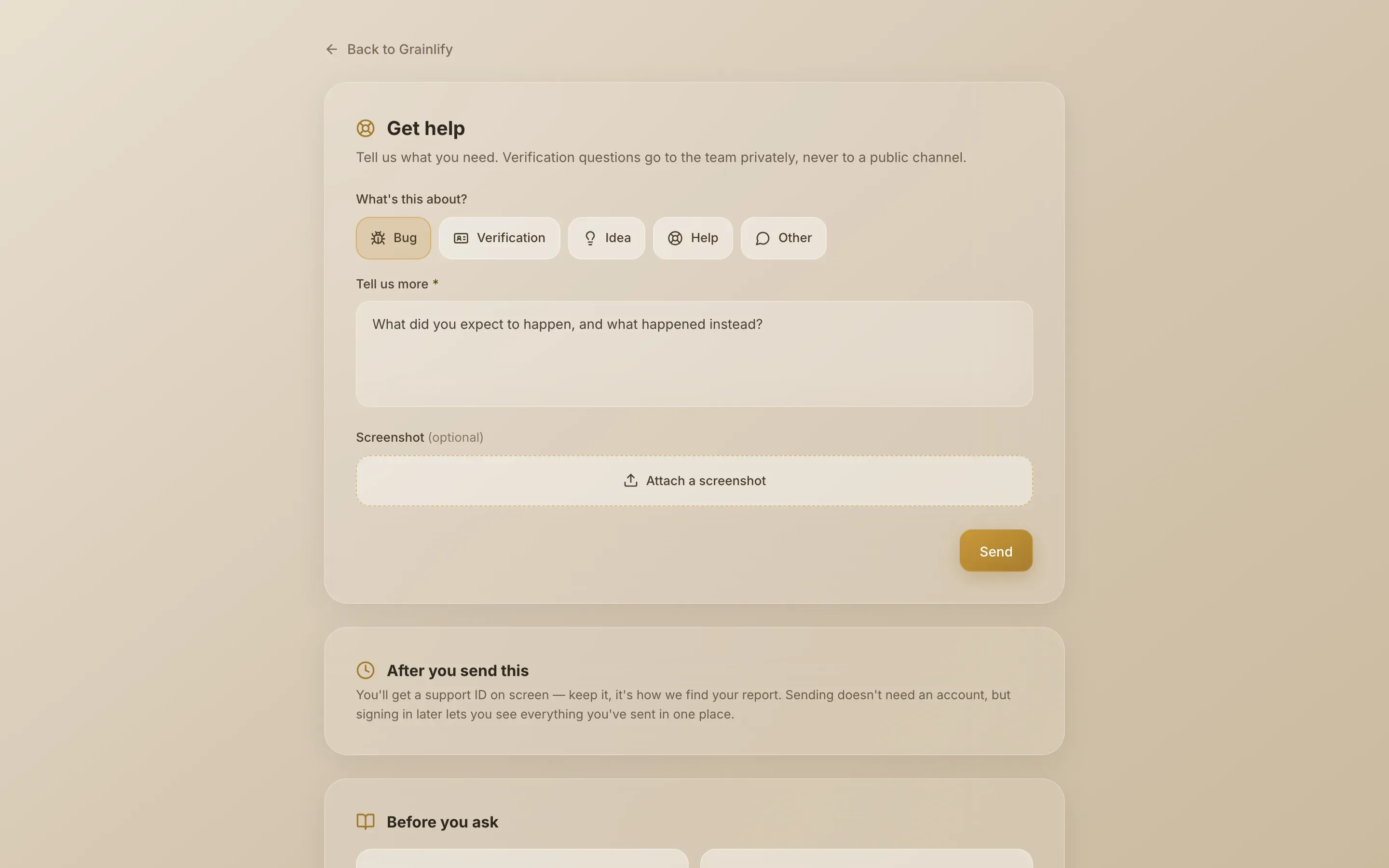
Choose what it's about. Under What's this about?, choose Bug, Verification, Idea, Help or Other. The choice decides who sees your report, so pick carefully (see the next section).
-
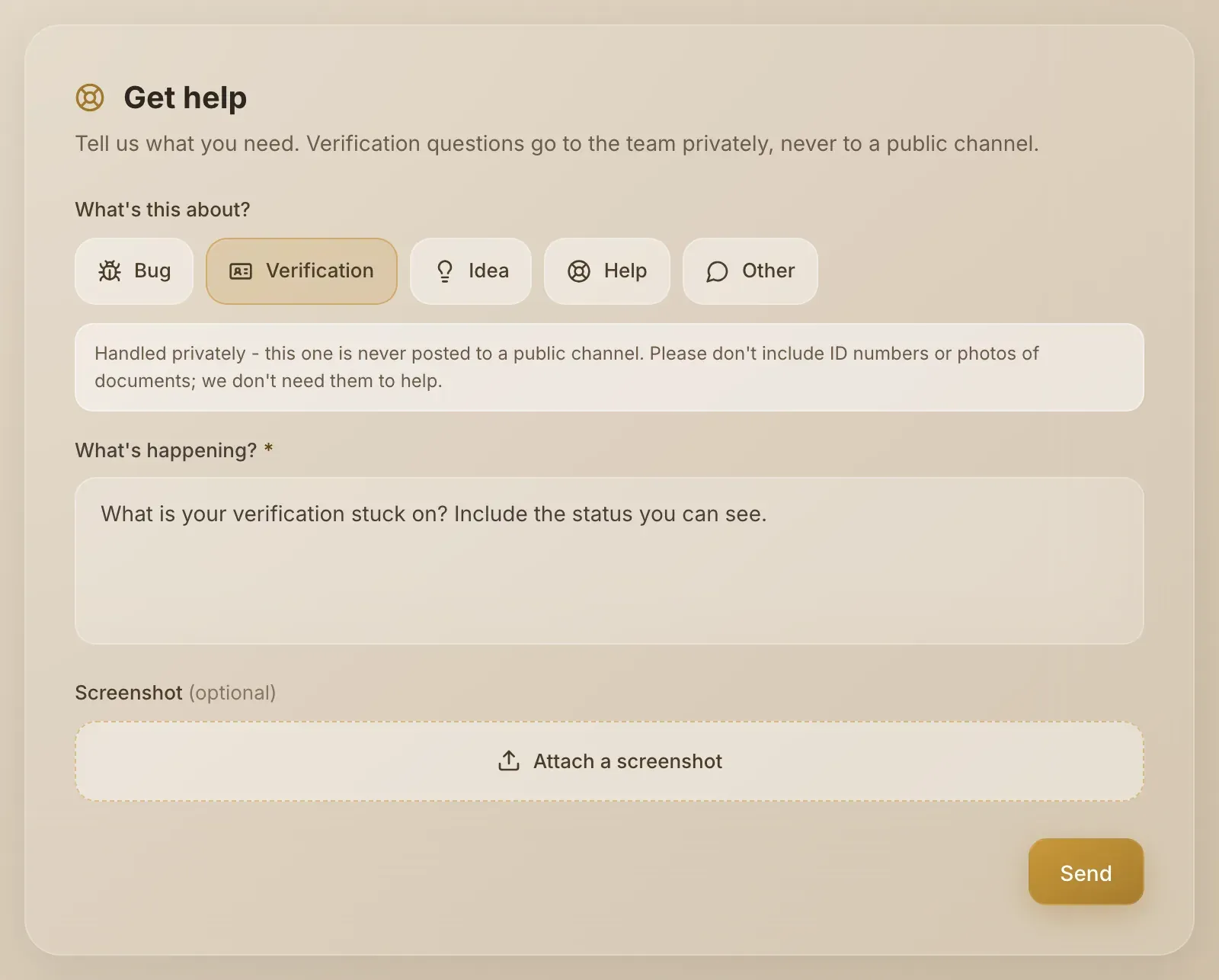
Describe it. Type in Tell us more. For Verification the box is called What's happening? The hint in the box suggests what to include.
-
Add a screenshot if it helps. Choose Attach a screenshot. It's optional: PNG, JPG, GIF or WEBP, under 5MB.
-
Choose Send. You'll see Thanks - we've got it, or Sent privately for a verification question. Done clears the form.
| Category | Use it for |
|---|---|
| Bug | Something is broken or doesn't do what it says |
| Verification | Anything about verifying your identity |
| Idea | A change you'd like to see |
| Help | You're stuck and need a hand |
| Other | Anything else |
Who sees your report
-
Verification questions go to the team only, never to a public channel. Don't include ID numbers or photos of documents: nobody needs them to help you.
-
Every other category is shared with the team, and your message and the page you were on are also posted in Grainlify's public Telegram group, so others can see what's already been reported. Your name isn't posted there, and neither is your screenshot. Don't write anything you wouldn't post publicly.
-
Screenshots go to the team only, whatever the category.
What's recorded: your message, the page you were on, your browser's user agent (which helps reproduce a bug) and any screenshot. If you're signed in, the report is linked to your account from your session. Your IP address isn't recorded.
Your reports
When you're signed in, Your reports below the form lists what you've sent: the category, the date, the message and the report's ID. Quote the ID if you follow up.
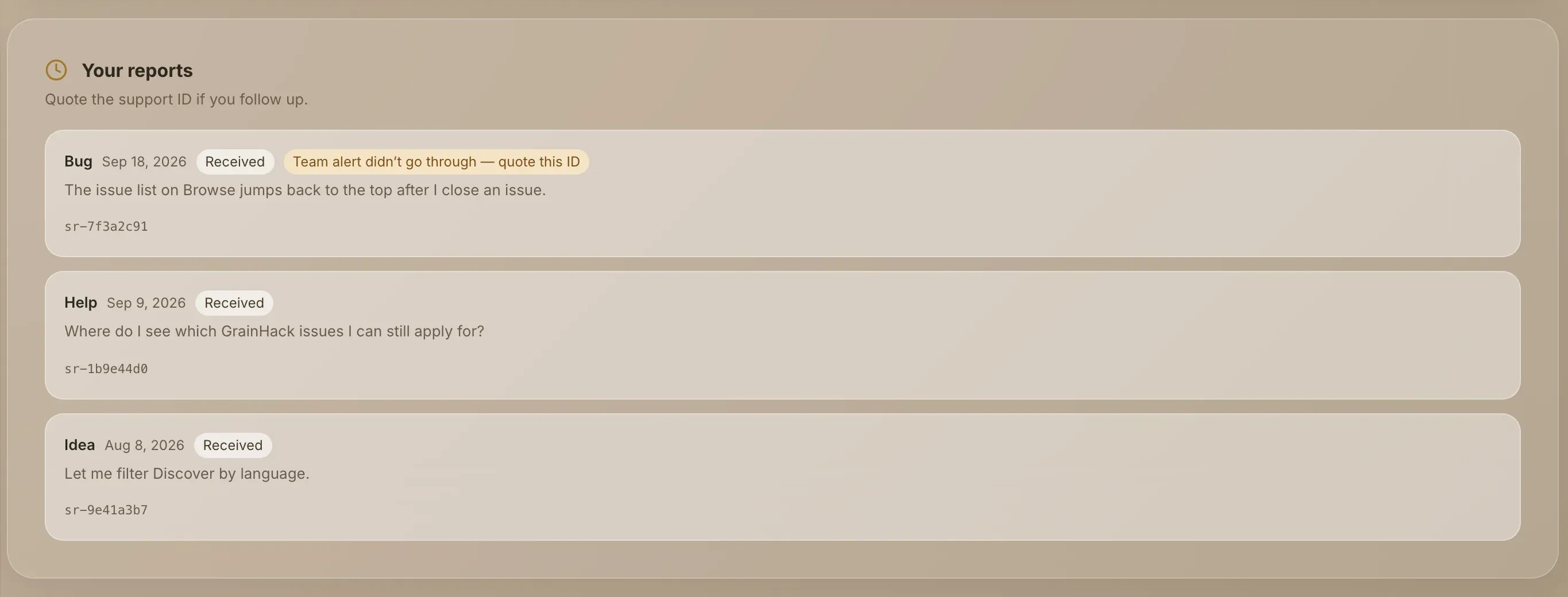
- Received means the report is saved. The page doesn't show whether it's been read or answered.
- Team alert didn't go through — quote this ID means your report is saved but the alert to the team failed. It's still there: send a follow-up quoting the ID.
Reports you send while signed out aren't linked to an account, so they don't appear in this list.
What happens after you send
Your report is saved first and delivered after. If a delivery channel is down, the report still exists. You only see an error if saving failed, and then your text stays in the box so you can try again.
If you're signed out and many reports are arriving at once, you may be asked to try again shortly. Signing in avoids that.
Below the form, Before you ask links to the documentation for the most common questions.