Add your repositories
Your repositories come to Grainlify through the Grainlify GitHub App. You install it on GitHub, choose which repositories it can see, and Grainlify adds them to your account. You need this before contributors can find your issues or apply for them.
Before you start
- A Grainlify account, signed in with GitHub. See Create your account.
- Permission on GitHub to install apps on the account or organisation that owns the repositories. On an organisation, that usually means being an owner.
- Public repositories. Grainlify never lists private repositories, and a repository that becomes private is removed from your list.
Install the GitHub App
-
Switch to the maintainer view. In the header, choose MAINTAINER. This opens Maintainers. See Contributor, maintainer and admin views for what the switch changes.
-
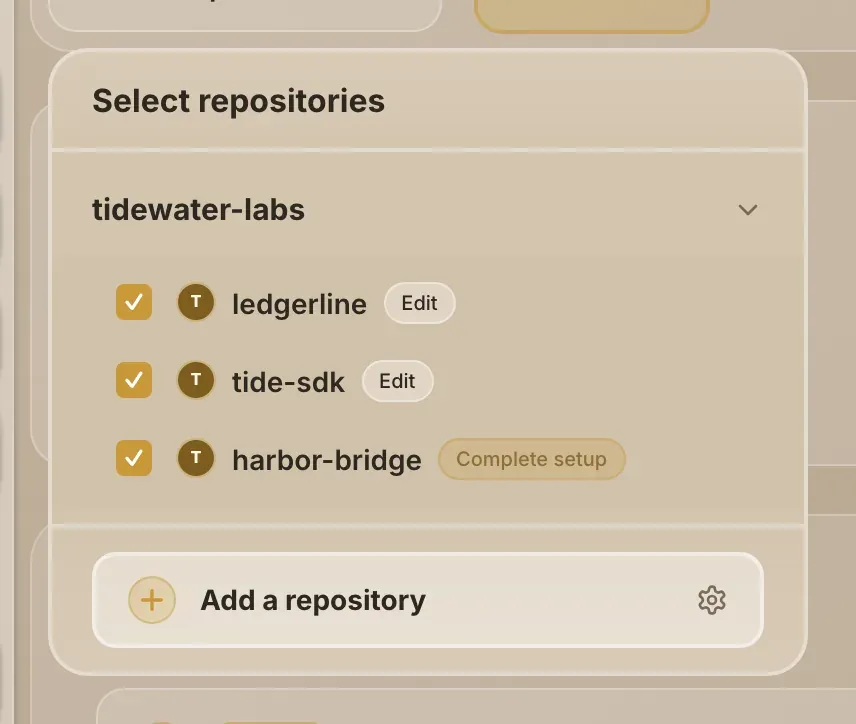
Open the repository selector. Choose Select repositories at the top left. Your repositories are listed by owner. If you have none yet, it says No repositories found.
-
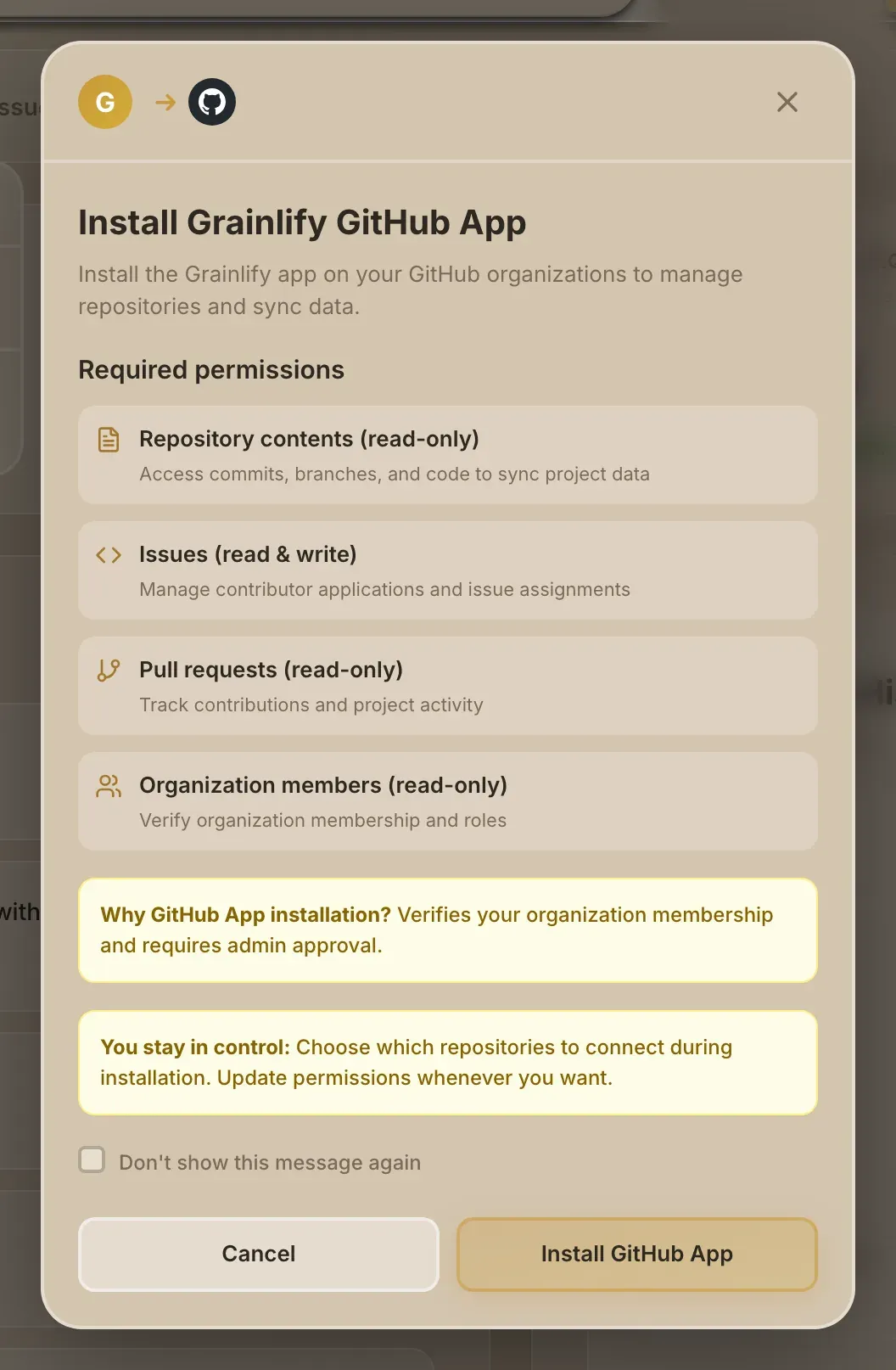
Choose Add a repository. A window titled Install Grainlify GitHub App lists what the app asks GitHub for: read-only access to repository contents, pull requests and organisation members, and read and write access to issues, which it needs to post comments and assign contributors.
-
Choose Install GitHub App. Grainlify sends you to GitHub.
-
Pick the repositories on GitHub. GitHub asks where to install the app and which repositories it may see. Choose Only select repositories and pick the ones you want on Grainlify, or choose all of them. Every public repository you give the app goes into your list, so picking them one by one keeps it tidy. Then confirm the install on GitHub.
If you cancel on GitHub, nothing is added.
Back on Grainlify
GitHub returns you to Grainlify's Discover page, in the contributor view. Your repositories are being added in the background; nothing on Discover changes.
-
Switch to MAINTAINER again. This opens Maintainers.
-
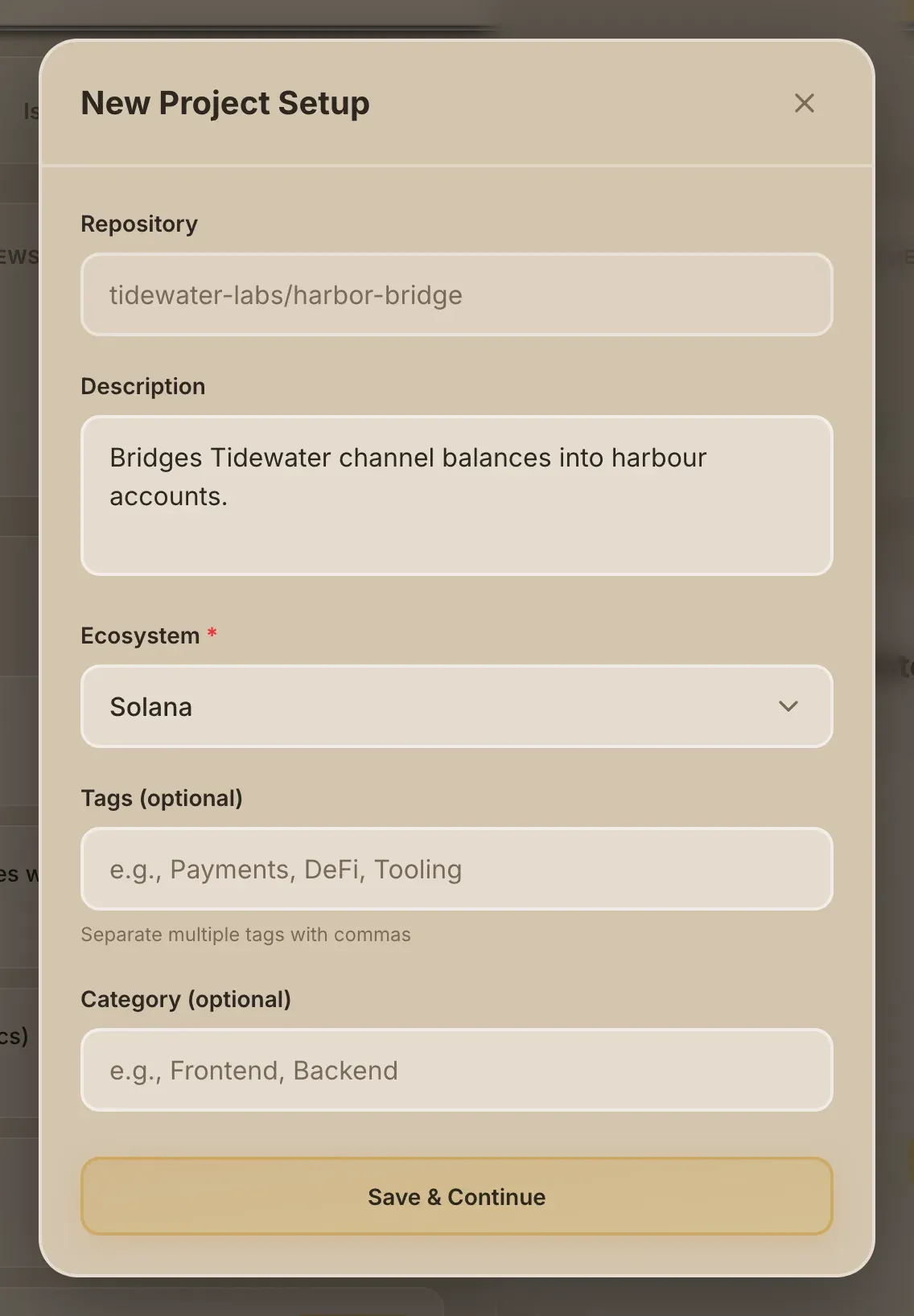
Finish setup. After a moment, a New Project Setup window opens for one of the new repositories. Fill it in and choose Save & Continue. Finish project setup explains each field.
-
Finish the rest from the selector. The window opens once. Any other new repository shows Complete setup in the repository selector; choose it to open the same window.
A repository you haven't finished setting up is not listed for contributors yet.
The repositories belong on Grainlify to the account that completes the install. That account sees them under Maintainers and is the one who can assign, reject and unassign applicants.
Add more repositories later
Start from Add a repository in Grainlify again and choose the new repositories on GitHub. Grainlify adds new repositories when GitHub sends you back to it, so changing the app's access only in your GitHub settings doesn't add them. If a repository still doesn't appear, get help and name the repository.