Register your payout address
Settings → Payout Preferences has two payout address cards, one for each chain that pays there. You register each one by connecting a wallet and signing one message, which proves the address is yours. Signing costs no gas and moves no funds.
| Card | Used for | Wallet |
|---|---|---|
| Base payout address | GrainHack payouts. The one event so far was paid to verified Base addresses on the Base Sepolia testnet. | Any regular Ethereum wallet |
| Register your payout address (Aptos) | Founding Contributor Pool payouts, once claims on Aptos are switched on. They aren't yet. | Petra |
Bounties use neither: they're paid to the Solana wallet you link to your GitHub account.
Base payout address, for GrainHack
A GrainHack payout is sent straight to this address in USDC. There's nothing to claim.
What you need
- An Ethereum wallet installed in your browser, holding an address you control directly. Any regular Ethereum wallet works, on any network.
- Not an exchange deposit address, and not a smart-contract wallet such as Safe: those can't be verified yet.
Register your Base address
- Open Payout Preferences. Open the menu under your picture, top right, choose Settings, then the Payout Preferences tab. The Base payout address card is below the Aptos one.
- Choose Connect wallet and sign, then pick your wallet from the list under Choose a wallet. Approve the connection in your wallet.
- Sign the message. The card shows the exact message your wallet should show. Approve it in your wallet.
- You're done. The card is marked Verified and shows the full address and the date you verified it, the network it's registered for, and checked by signature.
If no wallet is found, the card says No Ethereum wallet found in this browser. Install one, then reload the page. If the card says Payouts on Base aren't open yet, there's nothing to do for now.
When a GrainHack payout is prepared, each share is tied to the Base address verified at that moment and can't be moved afterwards. Registering a different address replaces the old one for later payouts only.
If the Base card shows a problem
| What you see | What to do |
|---|---|
| You declined the signature in your wallet. | Nothing was saved. Try again when you're ready. |
| Your wallet already has a request open. | Finish or cancel it in your wallet, then try again. |
| The signature didn't verify. | Make sure your wallet is signing with the account shown on the card. Smart-contract wallets can't be verified yet. |
| The signing request expired. | A request lasts ten minutes. Start again. |
| This address belongs to another Grainlify account. | Use a different address. |
| That address is already your Base payout address. | Nothing to do. Your registration keeps its original date. |
Aptos payout address, for the Founding Contributor Pool
Founding Contributor Pool payouts are to be paid on Aptos, to the address on this card. Claims on Aptos are built and tested on the Aptos testnet, but not switched on yet, so nothing has been paid to an Aptos address so far.
Before you start
- A browser with the Petra wallet installed. Petra is the wallet Grainlify has tested end to end. Other wallets that support the Aptos signing standard should work.
- A standard single-key Petra account. Multi-key accounts can't be verified yet.
Register your address
-
Open Payout Preferences. Open the menu under your picture, top right, choose Settings, then the Payout Preferences tab.
-
Choose Connect wallet and verify. It's on the card titled Register your payout address. Petra asks you to connect: approve it.

-
Sign the message. Petra shows a message to sign. Approve it. While Petra is open, the button reads Waiting for your wallet…
-
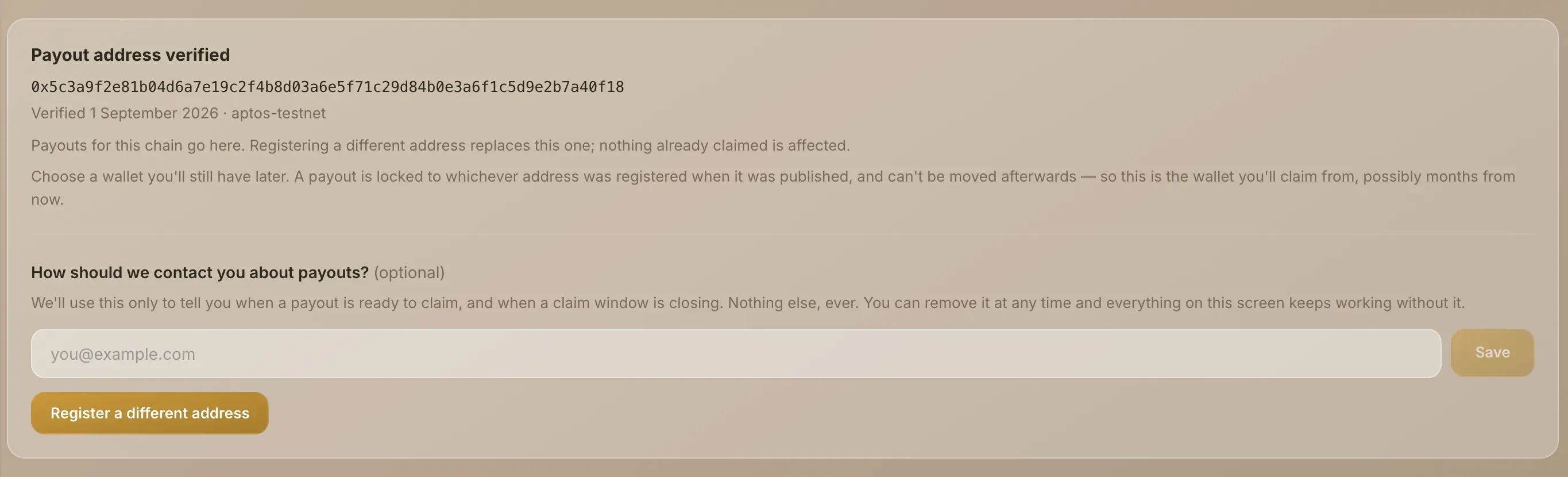
You're done. The card now says Payout address verified and shows the full address, the date you verified it, and the network it's registered for.
If Petra isn't installed, the card says A wallet is needed to receive payouts. Install Petra, then reload the page.
Signing is not a transaction and can't move funds. Grainlify never asks for your recovery phrase. If a page does, close it.
Choose a wallet you'll keep
A payout is locked to whichever address was registered when it was published, and it can't be moved afterwards. This is the wallet you'll collect from, possibly months from now. Don't register a wallet you might lose access to.
Change your address
Choose Register a different address on the verified card and go through the same steps. The new address replaces the old one, and a message names the address that is no longer your payout address. Payouts that were already published stay with the address they were locked to.
The payout contact field
Once your address is verified, the card asks How should we contact you about payouts? It's optional.
-
Type an email address in the box.
-
Choose Save. You'll see We'll use this to tell you about payouts.

Grainlify uses this address only for messages about your payouts. To delete it, choose Remove. Everything on the tab keeps working without it.
If something goes wrong
| What you see | What to do |
|---|---|
| That signature came from a different address. | Petra switched to another account after connecting. Nothing was saved. Switch accounts in Petra and try again. |
| The signing request expired. | A request lasts ten minutes. Start again. |
| You declined the signature in your wallet. | Nothing was saved. Try again when you're ready. |
| This wallet is a multi-key account… | Connect a standard single-key Petra account instead. |
| The signature didn't verify. | Approve exactly the request Petra shows you, without changing it. |
| That address is already registered for this chain. | Nothing to do. It's already your payout address. |
| No wallet detected. | Install Petra, then reload the page. |
Still stuck? Get help and say which wallet you used.