Post a Grainlify bot message
You can post a comment on one of your GitHub issues as the Grainlify GitHub App rather than as yourself. Use it to tell people an issue is open for applications on Grainlify, or to clarify what you're looking for.
Who can post
- The Post Grainlify bot message button shows for accounts that Grainlify has given the maintainer role, and for admins.
- Posting works only on projects you own on Grainlify, or on any project if you're an admin.
If you own the project but don't see the button, get help and name the project.
Post a message
-
Open the issue. In Maintainers, choose Issues, then choose the issue in the list.
-
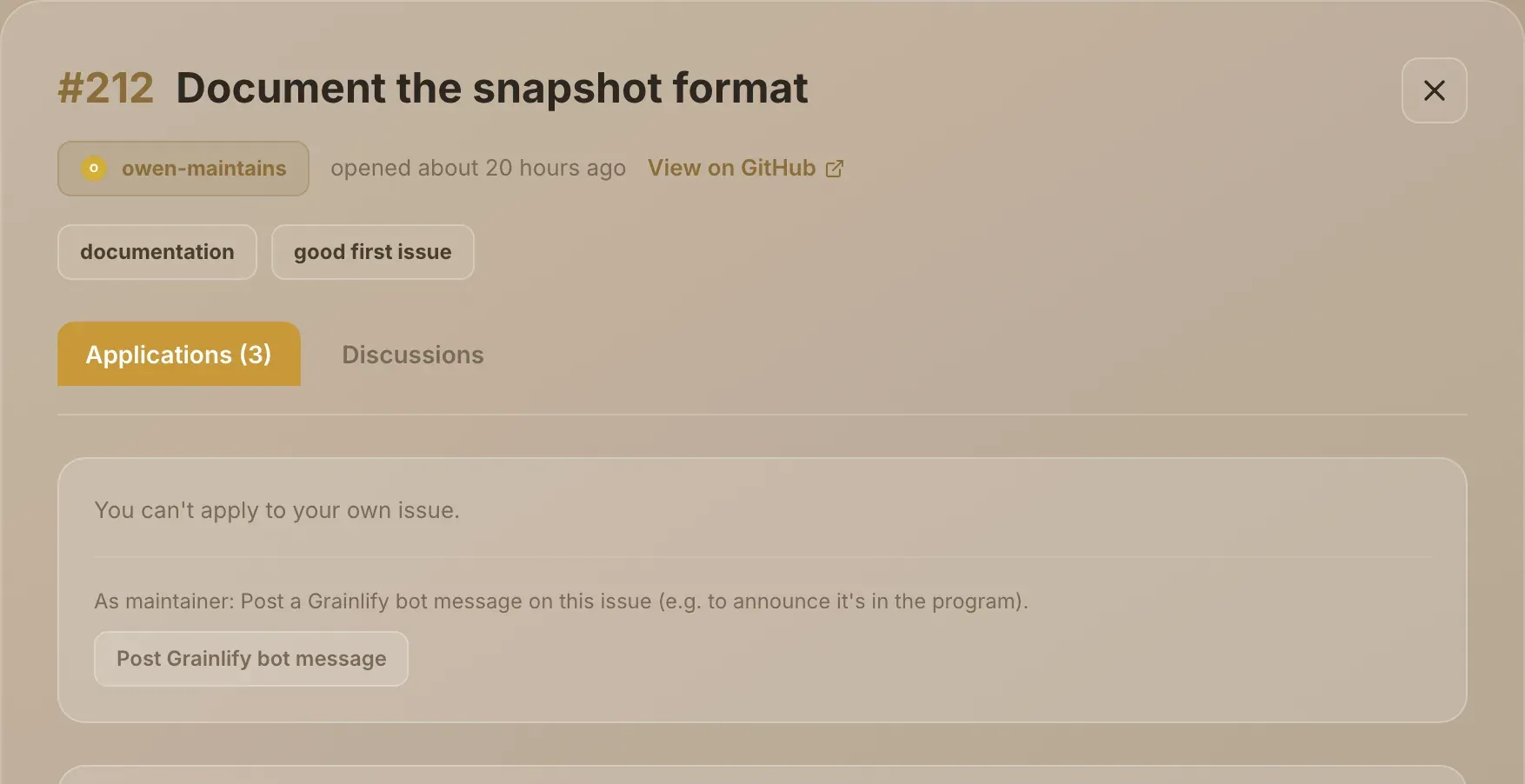
Find the button. On the Applications tab, under the text As maintainer: Post a Grainlify bot message on this issue, choose Post Grainlify bot message.
-
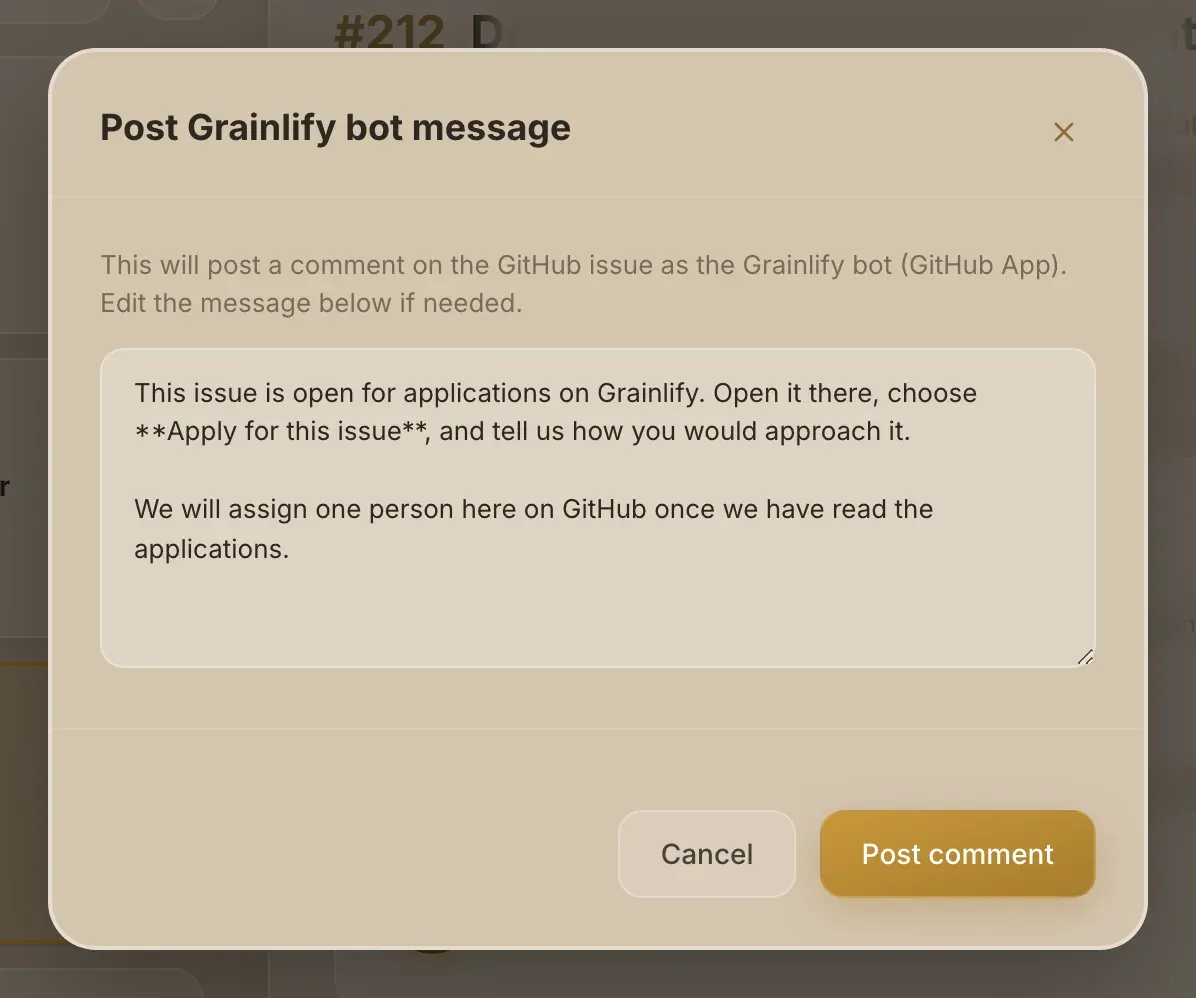
Write the message. The window says This will post a comment on the GitHub issue as the Grainlify bot (GitHub App). The box starts with a standard announcement. Edit it to say what you want; Markdown works, as it does on GitHub.
-
Choose Post comment. The comment appears on the GitHub issue straight away, and in the issue's Discussions tab here. To leave without posting, choose Cancel.
Read the standard announcement before you post it. It's general wording and may not match what you want to say about this issue.
After posting
The comment is an ordinary GitHub comment made by the app. Grainlify has no way to edit or delete it afterwards, so check it before you post.
If it fails
"This project's GitHub connection is broken. A maintainer needs to reinstall the Grainlify GitHub App to fix this." Grainlify can't post to this repository any more. Reinstall the app from Add a repository; see Keep projects in sync.
Any other error is shown in the window, and nothing is posted. You can try again.